 ChatGPT
 Claude
 Gemini
 Perplexity
Assessment Details
The Assessment Details page shows all data captured for a single assessment instance, including question responses, scores, and scoring summaries.
What you can do here
- Review all question responses and scores for an assessment
- See scoring summaries and category breakdowns
- Edit the assessment or view the Report Builder for this assessment
Accessing Assessment Details
From Account Details
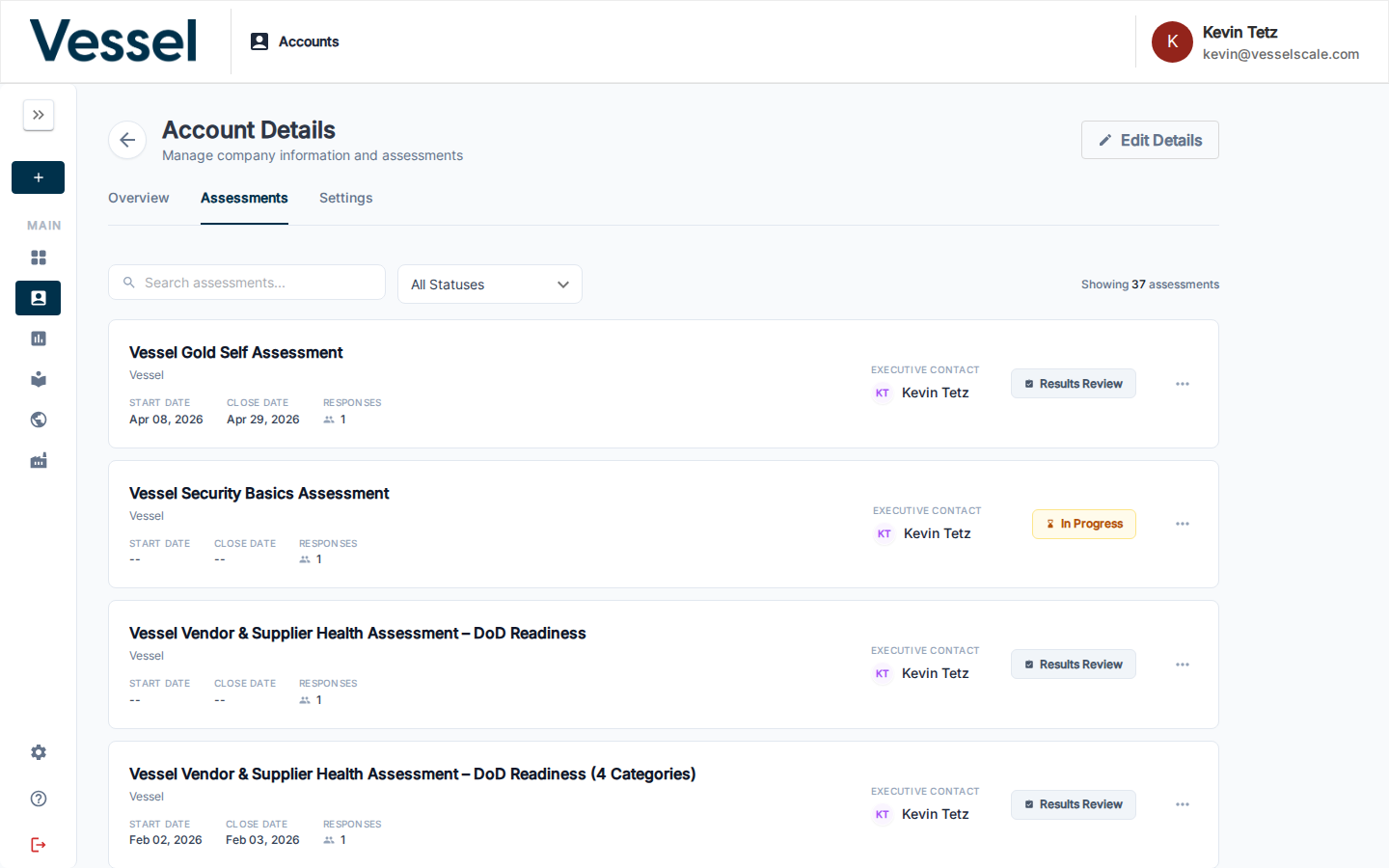
The easiest way to view assessment details is through the Account Details page:
- Navigate to Accounts and open an account
- Click the Assessments tab
- Click any assessment row to open its details
This shows all assessments for a specific account with their status, dates, and assigned executive contact.
From Assessment Collections
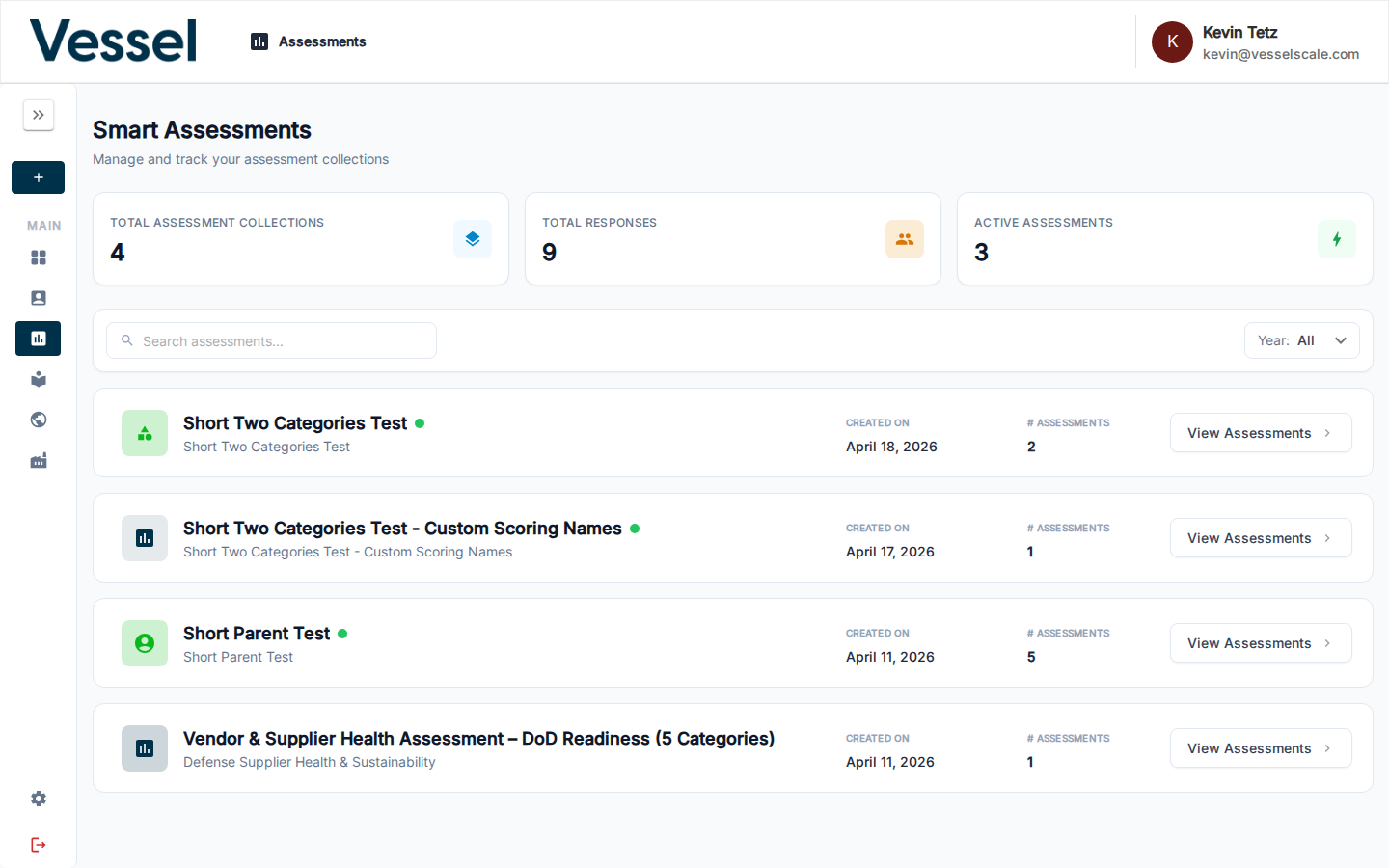
You can also view assessments from the main Smart Assessments page:
- Navigate to Assessments from the main menu
- This shows all assessment collections with their active assessments
- Click View Assessments on a collection card to see individual assessment instances
Assessment Details Overview
Once you open an assessment, the details page displays:
- Assessment name — Title of the assessment
- Account/Client name — The organization being assessed
- Dates — Start and close dates
- Status — Current state (Completed, In Progress, Results Review, etc.)
- Executive Contact — Person assigned to manage this assessment
Assessment Status Timeline
At the top of the assessment header, a visual progress bar shows the assessment's lifecycle:
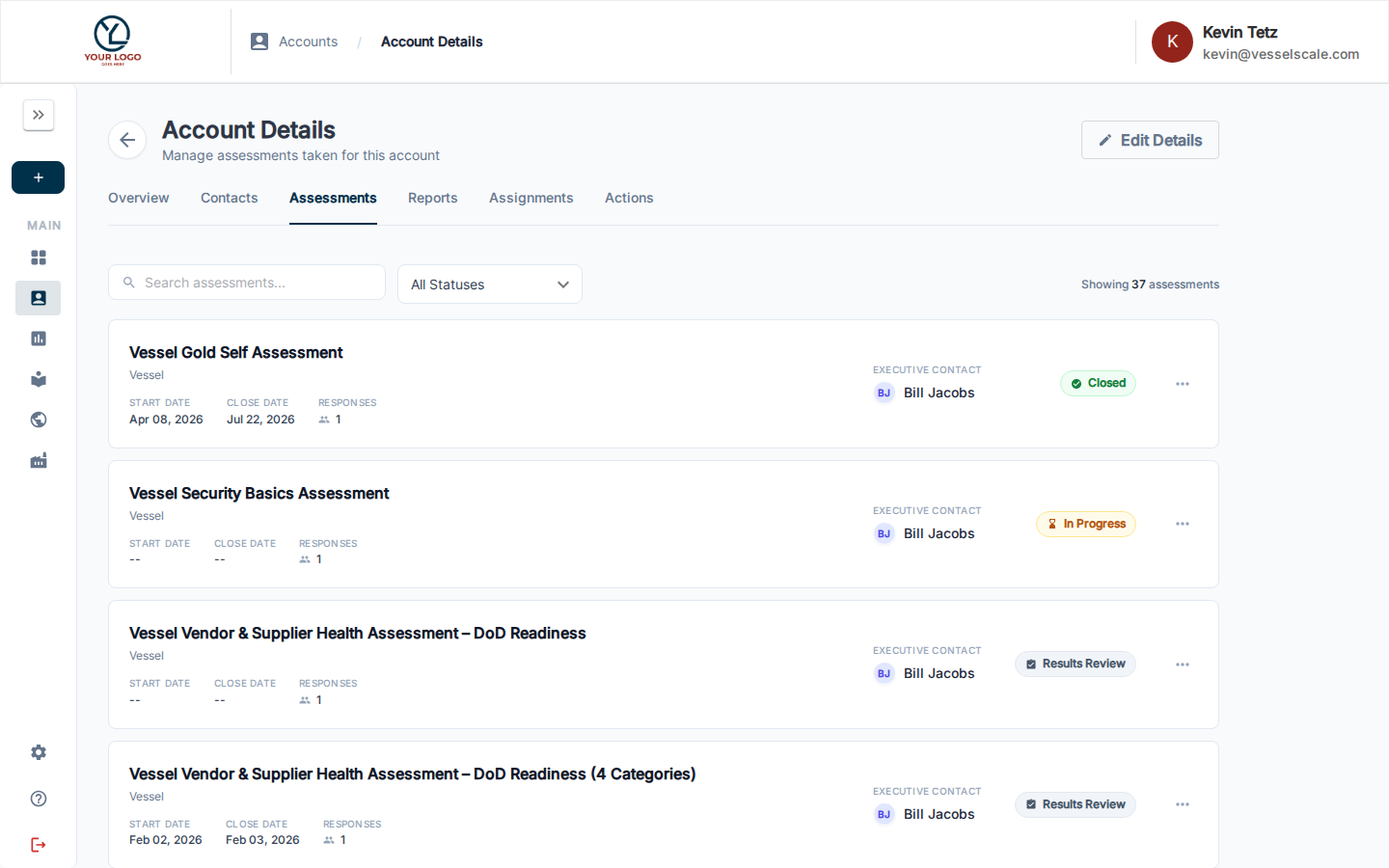
The timeline displays four key stages: - Draft — Assessment is being prepared - In Progress — Participants are actively completing the assessment - Results Review — Responses have been collected and are under review - Closed — Assessment is complete and archived
The current stage is highlighted with a pulsing animation, and the bar fills progressively as the assessment moves through its lifecycle.
Below the header, you'll find two main sections:
Responses Section
The Responses section displays each question from the assessment alongside the respondent's answer. Questions are grouped by category, and scorable questions show their assigned point value.
You can:
- Review all answers to audit the assessment
- Understand the basis for scores and recommendations
- See supporting documentation or notes for answers
See Assessment Question Types for details on how each question type captures and scores responses.
Scoring Section
The Scoring section shows how the respondent's answers translated into the final score. This includes:
- Category scores — Score breakdown by assessment section
- Overall score — Final result using the configured scoring method
- Scoring method — Either Averaged (scores averaged across all questions) or Summed (scores totaled)
- Scoring sections — Categories like "At Risk", "Could Improve", "Optimal"
See Assessment Scoring for detailed explanation of how scores are calculated and how scoring sections are defined.
Assessment Visibility & Privacy
Assessments can be configured as private (visible only to client users) or public (visible to all authorized users). This allows you to create client-specific assessments that are not visible to other organizations.
What is a Private Assessment?
A private assessment is visible exclusively to users from the client/account organization. It does not appear in public library views or to other accounts. Private assessments are ideal for:
- Client self-service assessments they conduct without executive oversight
- Confidential assessments for specific accounts
- Draft work-in-progress assessments you don't want to share broadly
What is a Public Assessment?
A public assessment is visible to all authorized users in the system. These are typically your standard assessment templates that are used across multiple accounts.
Setting Assessment Visibility
When creating or editing an assessment, you can control its visibility:
- Open the Create Assessment or Assessment Details page
- In the assessment header, look for the Visibility toggle or dropdown
- Select Private to restrict access to the account's client users only
- Select Public (default) to make it visible to all authorized users
How Visibility Affects Different Users
For Client Portal Users
- See only private assessments assigned to their account and public assessments available in the Library
- Can create their own assessments from the All Available Assessments tab (if enabled)
- Cannot see assessments marked as private for other accounts
For Administrators & Account Executives
- See all assessments regardless of visibility setting
- Can create, edit, and manage both private and public assessments
- Use View as Client to see the portal exactly as clients see it (excluding private assessments not assigned to that account)
What Clients See in the Client Portal
When clients log into their portal, they see:
- Their Assessments tab: Shows all public and private assessments assigned to them
- All Available Assessments tab: Shows only public assessments they can self-start
- Library: Shows only public assessments available for browsing
Reports Tab
Once an assessment has responses, a Reports tab becomes available on the Assessment Details page. This tab provides access to analysis and export options:
Available Actions
- View Analysis Report — Opens the Report Builder for full analysis and commentary
- Export as PDF — Generate a formatted PDF report (if PDF report templates are configured for this account)
- Export as Web Report — Publish findings as a shareable web report
Report Visibility & Access
Report access is controlled by your organization's configuration:
- PDF Reports — Available per account based on which PDF templates are enabled on the Account Details page
- Web Reports — Available per account based on which Web Report templates are enabled on the Account Details page
For more details, see: - Report Builder — Full analysis and writing interface - PDF Reports — Configure PDF report templates - Web Reports — Create and manage web-based reports
Impact Tracker Tab
Once an assessment reaches Results Review status, an Impact Tracker tab becomes available. This tab displays all action items created from findings in this assessment.
What You Can Do
- View all action items — See all actions generated from this assessment's findings
- Create new actions — Add action items for additional findings identified during review
- Update status — Change action status (Open, In Progress, Complete, Won't Do)
- Record impact metrics — Document the business outcomes from completed actions
- Collaborate — Add internal notes or client-facing comments to action items
Action Item Lifecycle
When you close an assessment, VSAP automatically:
- Extracts findings from the assessment results and recommendations
- Creates action items for each identified gap or opportunity
- Pre-populates context including assessment category, scoring details, and recommended actions
- Assigns to team members for follow-up and implementation
This ensures no insights are lost and all assessment findings flow into your accountability and measurement system.
Workflow
Assessment Closed → Action Items Created → Implemented & Tracked → Impact Metrics Recorded → Results on Directors Dashboard
For complete details, see Impact Tracker.
Assessment Closure Workflow
When you're ready to close an assessment, the Assessment Details page guides you through the closure process:
Preparing to Close
Before closing, ensure: - All responses have been collected - Scores and analysis are complete - Any recommendations have been reviewed - Your team has documented all findings
Closing the Assessment
- On the Assessment Details page, click Close Assessment or Mark as Complete
- Review the assessment status timeline
- Confirm you're ready to transition to closed status
- Action items are automatically created from the assessment findings
Post-Closure
Once closed: - The assessment moves to Closed status in the timeline - The Impact Tracker tab becomes fully active - Action items are available for team tracking - The assessment is archived but remains viewable for reference - You can reopen if needed for additional work
Editing an Assessment
From the Assessment Details page, you can edit the assessment to modify responses. The editor shows:
- Questions organized by category
- Current responses and answers
- Navigation between different sections
- Progress tracking showing which questions have been answered
The editor provides a consistent interface whether creating a new assessment or revisiting responses to an existing one.
Help Videos
Watch these tutorials to learn how to manage assessment details:
Vessel Assessment | Assessment Details Overview
Vessel Assessment | Closing Assessment
Related
- Getting Started: Step 5 — Quick-start guide to analyzing results
- Assessments — Overview
- Account Details — View assessments by account
- Report Builder — Create custom reports
- Question Types — Question type details
- Scoring — Scoring system explanation
- Impact Tracker — Track action items and measure impact
- Directors Dashboard — Executive-level impact metrics