 ChatGPT
 Claude
 Gemini
 Perplexity
All Available Assessments
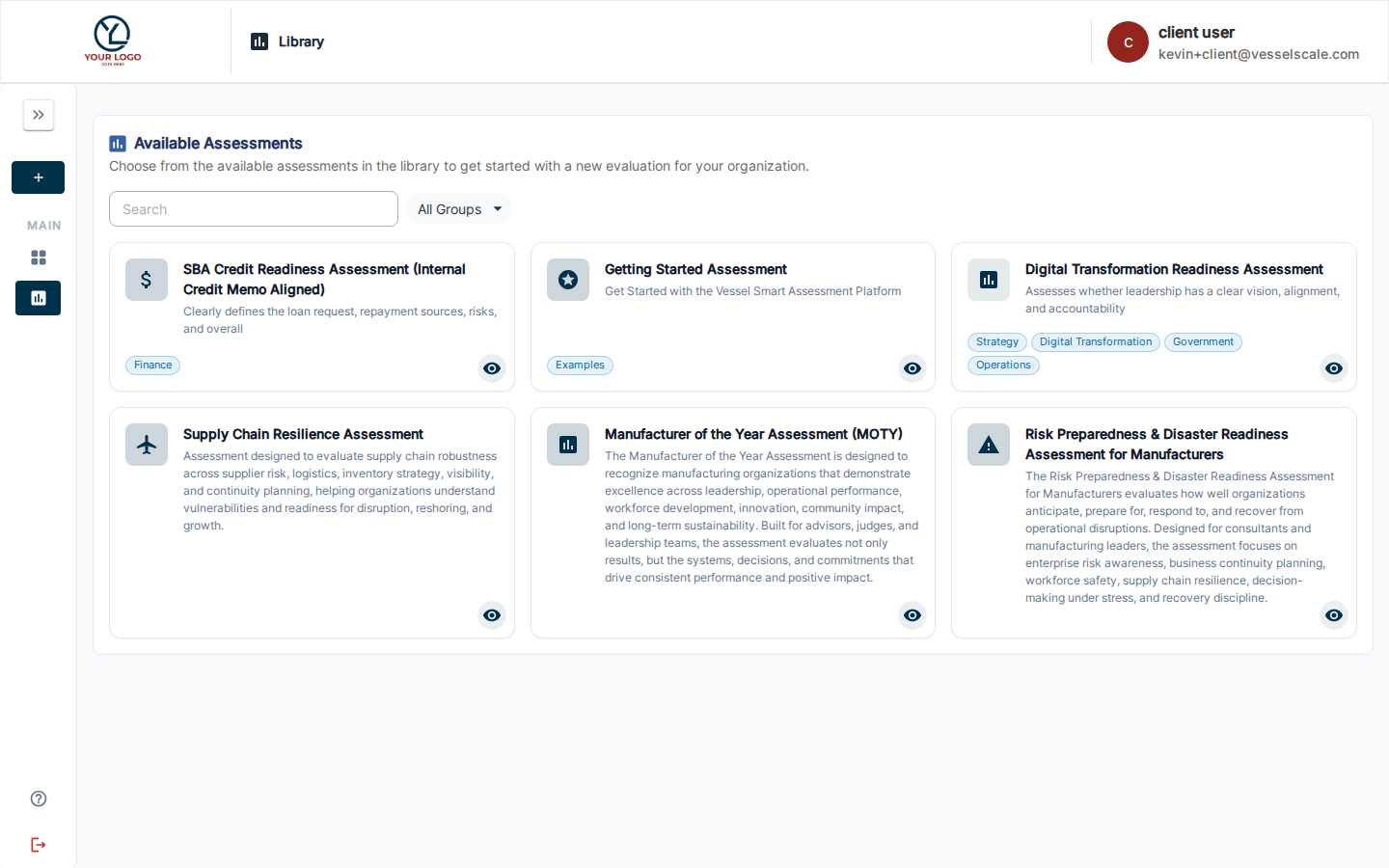
The All Available Assessments tab is the second tab in the Available Assessments area of your Client Portal. It shows every assessment type your organization offers as a card grid — so you can see what's available and start a new one at any time, without waiting for your Account Executive to assign it.
This tab sits alongside Your Assessments, which lists the assessments already assigned to or created by your account.
Browsing the card grid
Each card displays:
- Icon — a color-coded visual for quick recognition
- Name — the assessment type name
Click any card to open the Assessment Detail modal with more information.
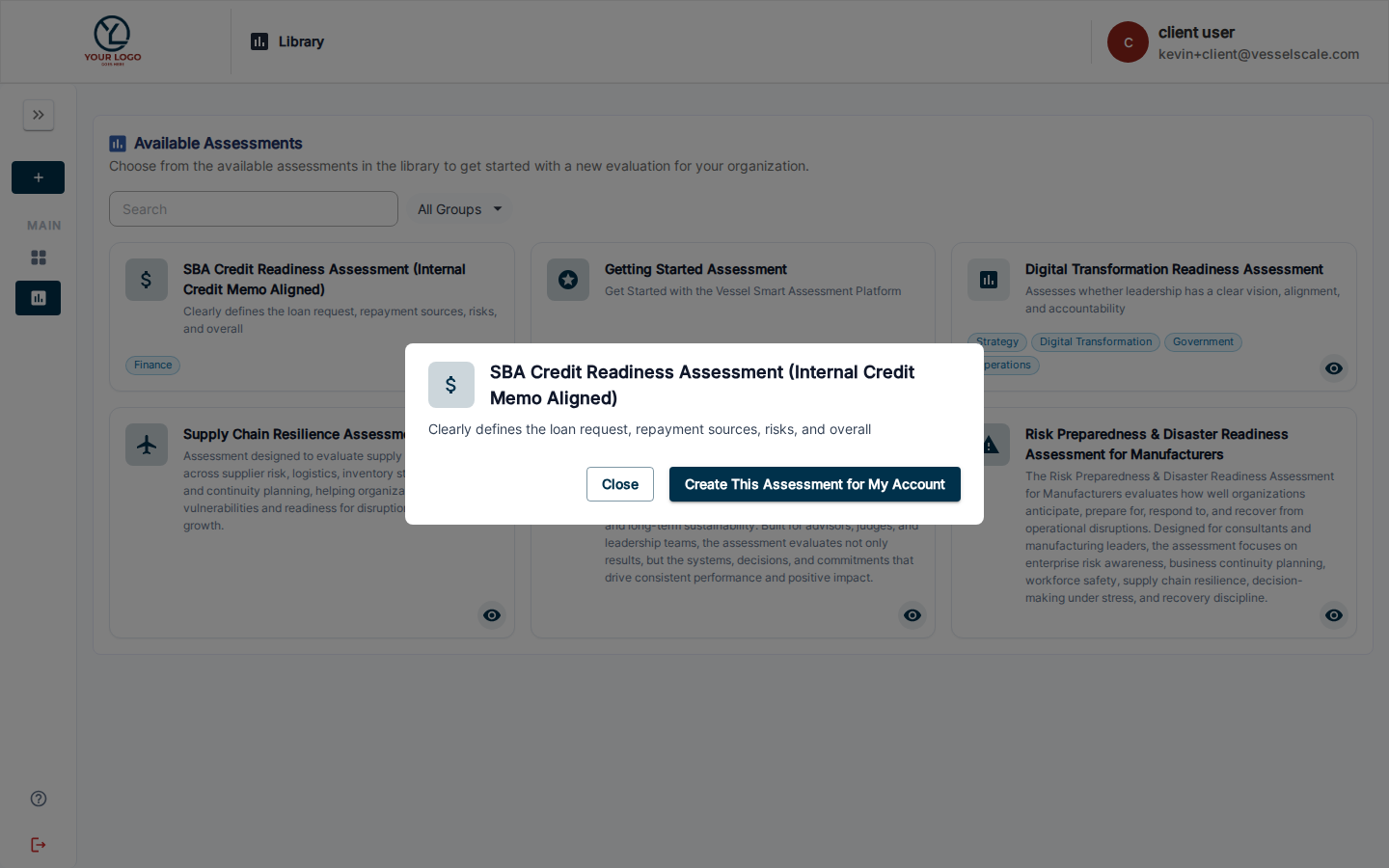
Assessment Detail modal
When you click a card, a modal opens showing:
- The assessment icon and name
- A description of what the assessment evaluates and who it's designed for
For client users
You'll see a Create This Assessment for My Account button. Clicking it takes you directly to the Create Assessment form, pre-filled with your account and the selected assessment type. Fill in any remaining details and submit to create your draft.
Once created, the assessment appears in your Your Assessments table with a Draft status. Use the View / Edit button on that row to open and manage it.
For administrators and Account Executives (preview mode)
When viewing the portal in Preview Mode (via "View as Client"), you'll see an informational notice instead of the create button:
"This feature is only available to client users. In preview mode, use the Create button in the sidebar to create an assessment for this account."
This is intentional — to create an assessment on behalf of a client, use the standard Create Assessment flow from the admin sidebar.
What assessments appear here?
The grid shows all active, top-level, and publicly available assessment types in your organization's library. This includes:
- Public assessments that your organization has published and made available to clients
- Top-level assessments only — Sub-assessments (child assessments nested inside a parent) are not shown here
- Assessments assigned to your account also appear in your Your Assessments tab
Private assessments created for specific accounts do not appear in this grid — only public assessments that are available organization-wide.
Draft Status
When you create an assessment from this tab, it starts as a Draft. You can:
- Continue editing — The assessment is not yet live for other respondents
- Save your progress — Changes are saved automatically as you work
- Return anytime — Use View / Edit in your Your Assessments tab to pick up where you left off
- Publish when ready — Once complete, your Account Executive can publish it if needed
Related
- Your Assessments — view and manage assessments assigned to your account
- Library — the sidebar library for browsing and launching assessments
- Client Portal Overview — portal navigation overview
- Assessment Visibility — public vs private assessments