 ChatGPT
 Claude
 Gemini
 Perplexity
Impact Tracker
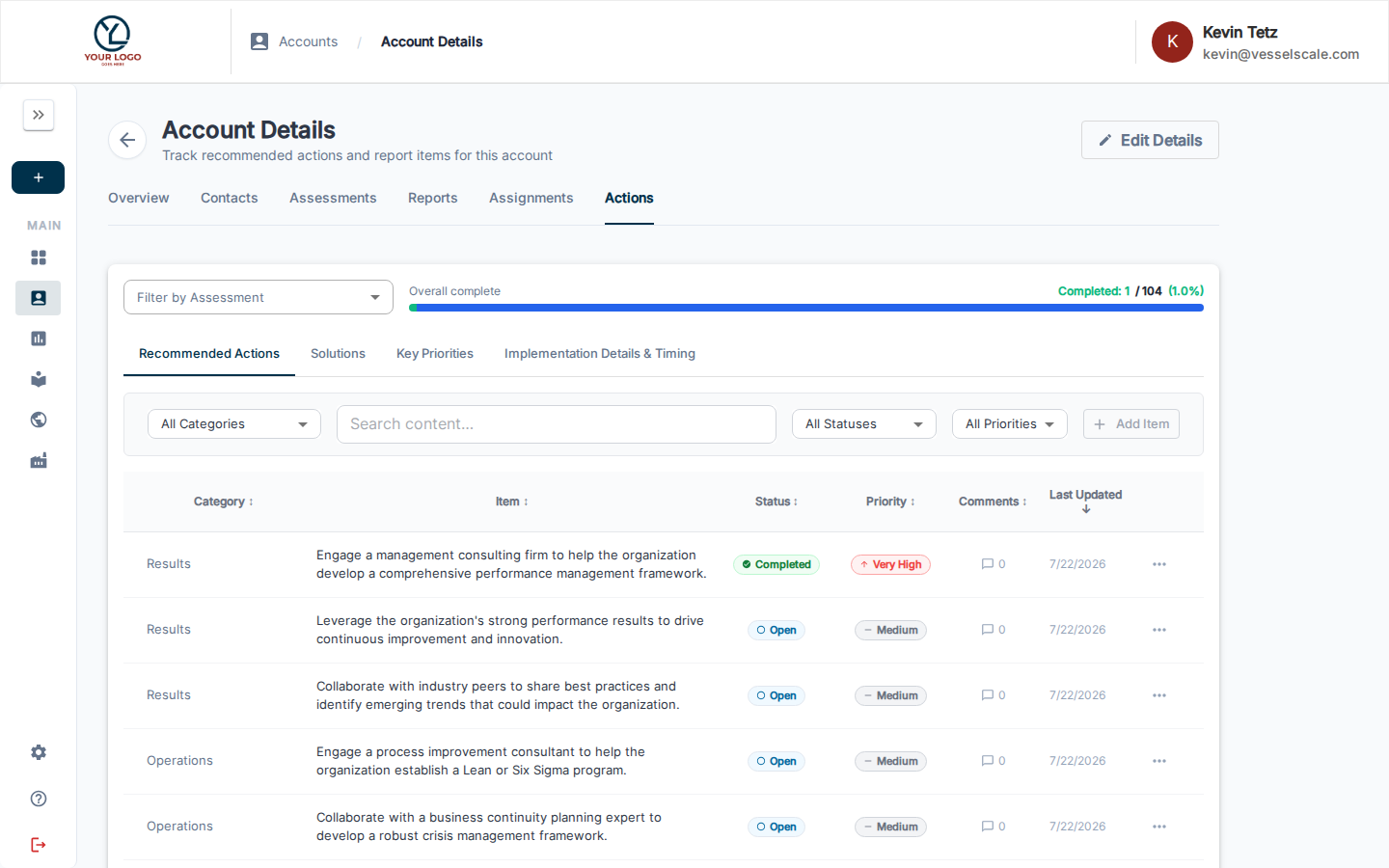
The Impact Tracker is a comprehensive system for managing action items and tracking their impact on your assessment ecosystem. It enables seamless handoff of assessment findings into actionable improvement initiatives with built-in collaboration tools and impact measurement.
What you can do here
- View and manage all action items from assessments
- Track action item status and priority
- Record impact metrics and business outcomes
- Collaborate with team members and clients via comments
- Visualize impact data on the Directors Dashboard
- Filter and search actions by assessment, account, or category
Key Concepts
Action Item Lifecycle
1. Creation — Actions Copied After Assessment Close
When an assessment is marked as closed, VSAP automatically creates action items for findings identified during the assessment. This ensures: - No insights are lost when assessments complete - All recommendations flow into a trackable system - Action items are pre-populated with assessment context
2. Status Management & Prioritization
Each action item can be assigned: - Status — Open, In Progress, Complete, or Won't Do - Priority — Low, Medium, High, or Critical - Owner — Assigned account executive, manager, or team member
3. Impact Metrics Recording
Once actions are in progress or completed, track their business impact: - Quantifiable metrics (cost savings, efficiency gains, etc.) - Qualitative outcomes (improvements in capability, customer satisfaction, etc.) - Timeline to completion - Risk mitigation achieved
Impact Aggregation for Directors Dashboard
Impact data flows into the Directors Dashboard for executive visibility: - Aggregate impact metrics across all action items - Ecosystem-level impact trends and patterns - ROI on improvement initiatives - Success rate tracking
Accessing the Impact Tracker
The Impact Tracker is available from: 1. Main Navigation — Click Impact Tracker in the sidebar 2. Assessment Details — Click the Impact Tracker tab on any closed assessment 3. Directors Dashboard — Drill into impact metrics cards
User Roles & Collaboration
For Account Executives
- Create and assign action items after assessment close
- Update status and priority
- Record impact metrics
- Monitor all actions across their accounts
- Add comments and notes for collaboration
For Clients
- View action items related to their organization
- Update status on assigned actions
- Add comments and feedback
- Track progress toward goals
- See impact metrics related to their improvements
For Directors & Leadership
- View aggregated impact metrics across the entire ecosystem
- Identify trends and high-impact initiatives
- Access analytics on action item completion rates
- Export impact data for strategic planning
Working with Action Items
Creating Actions
Actions are typically created automatically when assessments close, but you can also: 1. Create standalone actions from the Impact Tracker 2. Link actions to specific assessment findings 3. Assign to accounts and responsible parties 4. Set initial priority and timeline
Updating Impact Metrics
Record the real-world outcomes of actions:
- Open an action item
- Go to the Impact Metrics section
- Enter:
- Quantifiable outcomes (e.g., cost savings, time saved)
- Qualitative improvements (e.g., capability improvements)
- Completion date and time to complete
- Supporting documentation or evidence
Collaboration Features
Add comments and updates throughout an action's lifecycle: - Internal notes for your team - Client-facing updates on progress - Status change notifications - Impact metric validations
Filtering & Searching
Use powerful filtering to find relevant actions: - By Assessment — All actions from a specific assessment - By Account — All actions for a client organization - By Status — Open, In Progress, Complete, Won't Do - By Priority — Filter high-priority items needing attention - By Category — Group by assessment category or business area - By Timeline — Find overdue or upcoming actions
Permissions & Visibility
- Account Executives — Can see all actions for their assigned accounts
- Client Users — Can see only actions related to their organization
- Directors — Can see all actions and impact metrics (read-only or edit depending on role)
- Admins — Full access to all actions across the system
Best Practices
- Timely Entry — Create action items immediately when assessments close
- Clear Ownership — Always assign specific owners to action items
- Regular Updates — Update status and metrics at least monthly
- Evidence Collection — Document impact with supporting data
- Client Communication — Keep clients informed of action progress via comments
- Leadership Review — Present impact metrics to leadership quarterly