 ChatGPT
 Claude
 Gemini
 Perplexity
Step 5 — Analyze Results
When responses come in, open the Report Builder to review scores and document your analysis.
Opening the Report Builder
From the Assessment Details page, click Build Report in the top action bar.
Note
Build Report is only active after at least one response has been submitted.
Working in the Report Builder
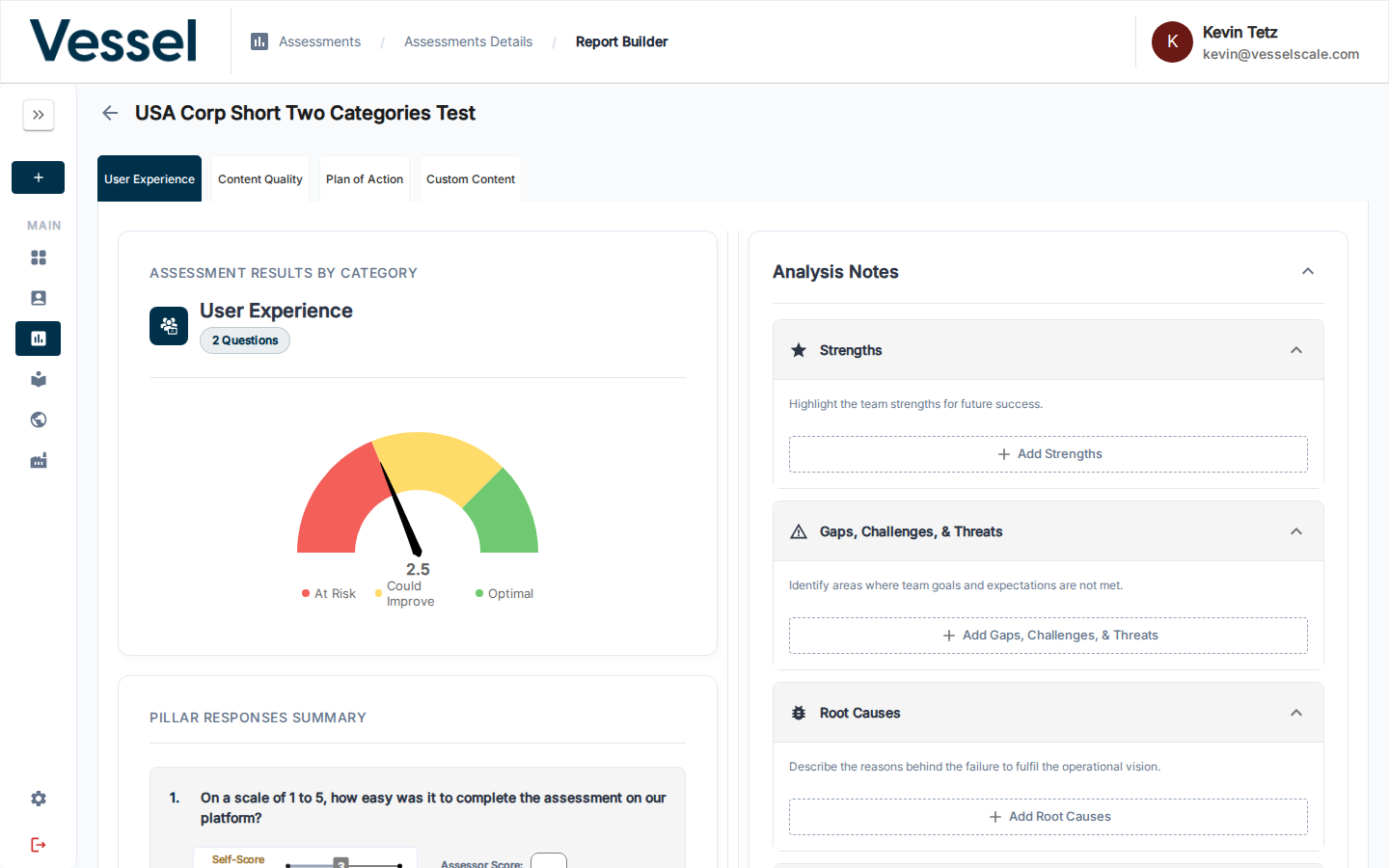
Switch between category tabs at the top to review each section. For each category you'll see:
- A gauge chart showing the score and zone (At Risk / Could Improve / Optimal)
- A Pillar Responses Summary breaking down each question
- Analysis Notes fields to document Strengths, Gaps & Challenges, Root Causes, Qualitative Insights, and a Plan of Action
Qualitative Insights
The Qualitative Insights tab contains an AI-generated summary of open-ended question responses for the category. Review and edit the content before including it in a published report.
Next Step
Related
- Report Builder Reference — Detailed analysis tools
- Assessment Scoring — Understand score calculations
- PDF Reports — Export findings as PDF