 ChatGPT
 Claude
 Gemini
 Perplexity
Configure Dashboard
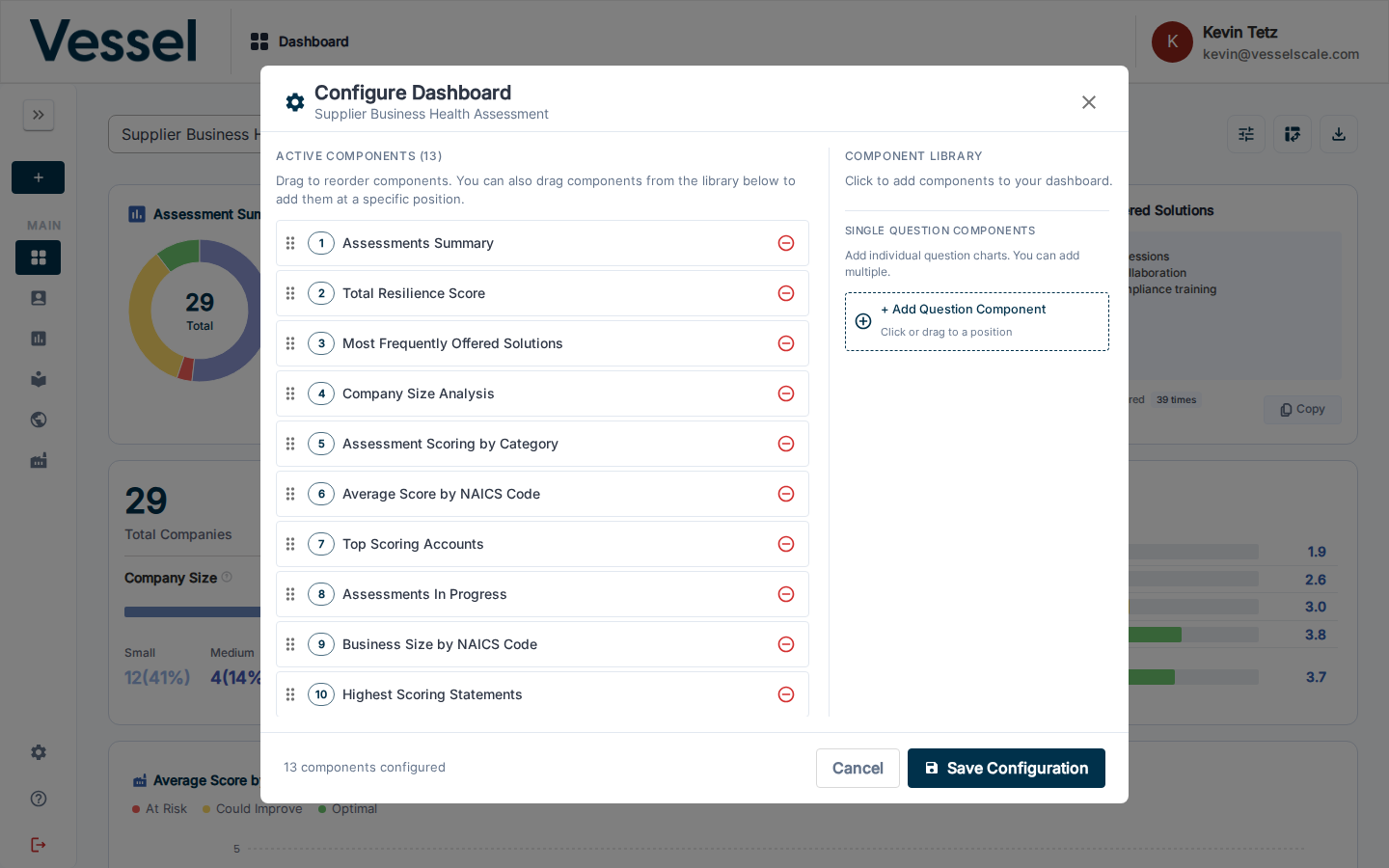
The Configure Dashboard modal lets you control which analytics components appear on the dashboard and in what order. Configuration is saved per assessment definition.
Opening the modal
Click the Configure button (sliders icon) in the top-right toolbar of the dashboard.
Active Components
The left panel lists all currently active components, numbered in their display order. Each row has a drag handle on the left and a remove button (red minus icon) on the right.
- Drag to reorder — grab the handle and drag a component to a new position
- Remove — click the minus icon to remove a component from the dashboard; it moves to the Component Library
- You can also drag a component from the library directly to a specific position in the active list
Component Library
The right panel contains components available to add to the dashboard:
- Single Question Components — add individual question charts. You can add multiple. Click + Add Question Component or drag it to a position in the active list.
Saving
Click Save Configuration to apply your changes. The dashboard will reload with the updated layout. Click Cancel to discard any changes.
Related
- Components — descriptions of each available component
- Dashboard Overview