 ChatGPT
 Claude
 Gemini
 Perplexity
Workflow Step 3 — Deliver Assessment
Once your assessment is published, share it with respondents to start collecting their responses.
Sharing Your Assessment
On the Assessment Details page, scroll down to the Assessment Delivery section or look for the Deliver Assessment card in the Workflow Guide.
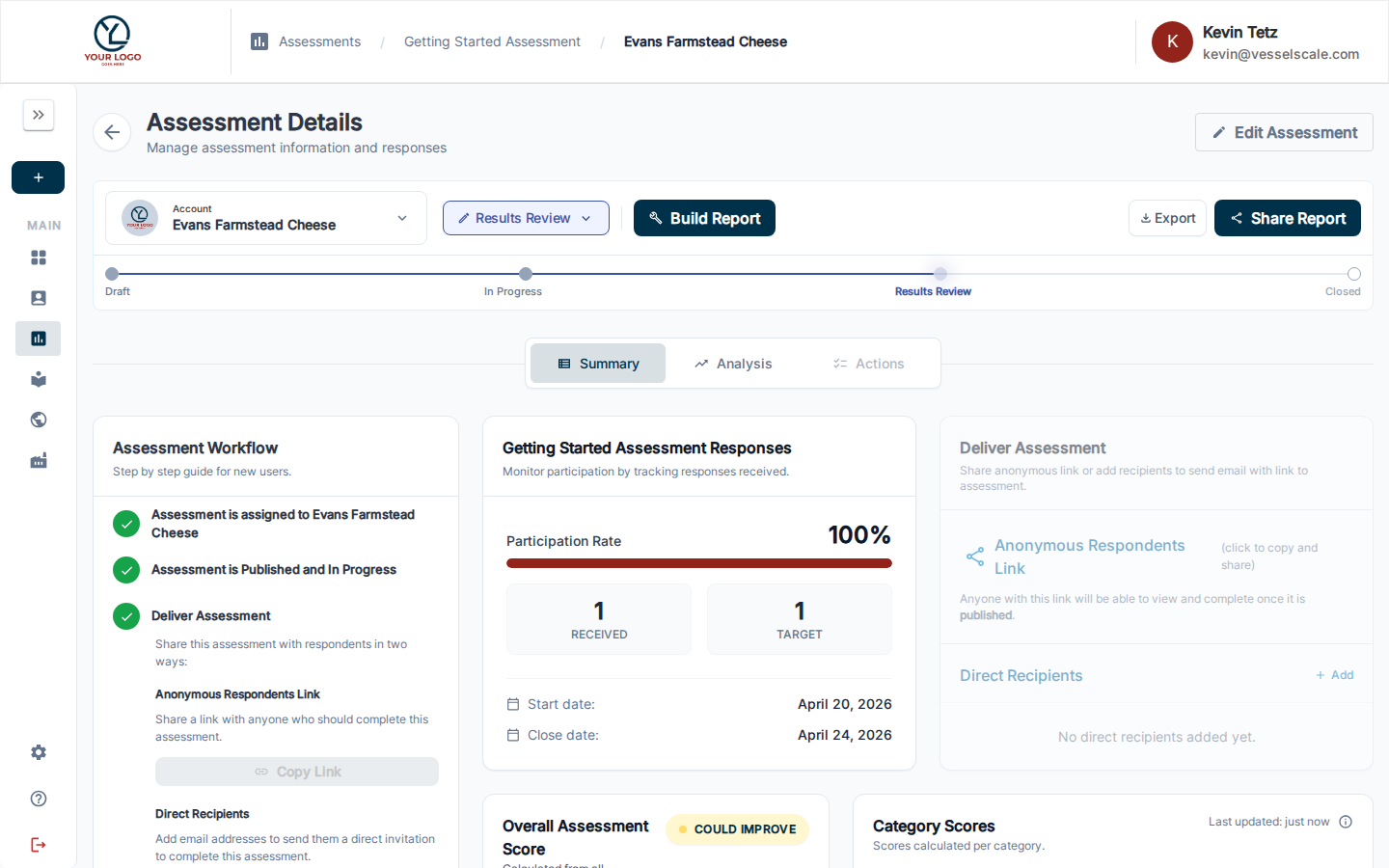
There are two ways to share the assessment:
Anonymous Survey Link
Copy the Assessment Link and share it however you like — email, chat, or your organization's portal. Anyone with the link can submit a response once the assessment is published and not closed.
Best for: Open, broad-based feedback
Direct Recipients
Click + Add Recipient to send a unique, personalized link to a specific email address. Direct links are tied to that recipient and track which person submitted each response.
Best for: Individual feedback, specific people you need to assess
Before You Share
✅ Assessment must be Published — Status must be In Progress (done in Step 2)
✅ Assessment must be Open — The current date must be between the start and end dates
✅ Recipients are ready — Add any specific respondents if using direct links
Tracking Responses
The assessment detail page shows real-time response counts: - Total Responses — How many responses you've received - Response Status — In Progress vs. Completed - Respondent List — See who has responded (for direct recipients)
Pausing or Stopping Collection
To stop collecting responses before the end date, you can close the assessment from the Assessment Details page. Once closed, no new responses can be submitted.
Next Step
Workflow Step 4 — Build Report & Recommendations
Related
- Assessment Details Reference — Full assessment management
- Respondent Management — Adding and tracking respondents
- Anonymous Links — Sharing without collecting names