 ChatGPT
 Claude
 Gemini
 Perplexity
Assessment List
Browse and manage all assessment definitions in the Library.
Overview
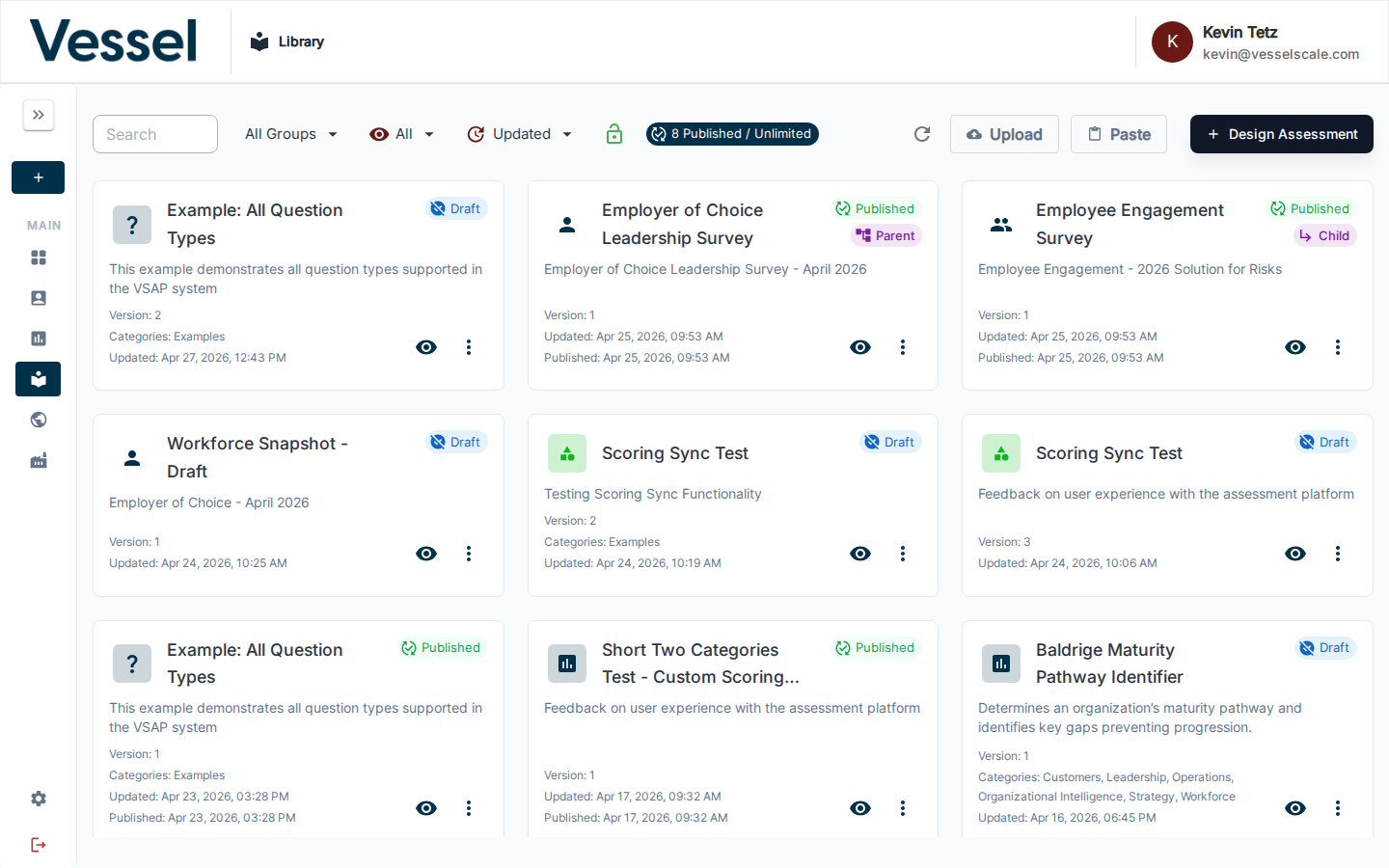
Each card in the Library shows:
- Assessment icon and name
- Status badge — Draft, Published, or Deprecated
- Parent/Child badge — whether this is a parent or child in a linked group
- Version — increments on every save or copy
- Last updated date
Click any card to open the editor.
Filtering and Sorting
Use the toolbar above the cards to filter and sort:
| Control | Options |
|---|---|
| Search | Filter by assessment name |
| Status filter | Show All, Drafts Only, Published Only, Published + Drafts |
| Sort | Updated Date (default), Name (A–Z), Custom Order |
| Group filter | Filter by parent assessment group |
Custom Order enables drag-and-drop reordering of cards. Drag a card to reposition it and the order is saved automatically.
Card Action Menu
Each card has a ⋮ (three-dot) actions menu. The options shown depend on the assessment's status, whether it is a parent or child in a linked group, and your permission level. Actions that would modify a locked assessment open a Locked dialog instead of proceeding.
Always available
These actions appear on every card regardless of status:
| Action | What it does |
|---|---|
| Copy to Clipboard | Copies the full YAML configuration (including icon, icon color, and category names) to your clipboard. |
| Copy to New Draft | Creates a new independent draft copy of this assessment. The copy appears at the top of the list with an incremented version number. |
| Download Config | Downloads the YAML configuration as a .yaml file to your computer. |
| Share Preview Link | Copies a public preview URL (/preview/{id}) to your clipboard so you can share the assessment without requiring a login. |
| Edit | Opens the full YAML editor for this assessment. Equivalent to clicking the card. |
Draft assessments only
| Action | When shown | What it does |
|---|---|---|
| Publish | Draft, not a child, admin/superuser only | Publishes the assessment. If the assessment has linked children, the label shows the total count (e.g., Publish (3 assessments)) and a confirmation modal lists all that will be published together. Non-admins see the item disabled with an explanatory tooltip. |
| Link to Parent | Draft, no existing parent, no existing children | Opens a search modal to select a parent assessment. Linking makes this a child of the selected parent. |
| Delete | Draft only | Permanently deletes the draft after a confirmation dialog. Published assessments cannot be deleted. |
Child assessments (linked to a parent)
| Action | What it does |
|---|---|
| Unlink from Parent | Removes the parent/child relationship. The assessment becomes a standalone draft again. A confirmation step is shown before unlinking. |
Note
A child assessment does not show Link to Parent, Publish, or Deprecate in its menu — those actions must be performed from the parent.
Published assessments only
| Action | When shown | What it does |
|---|---|---|
| Deprecate | Published, not a child, not already deprecated, admin/superuser only | Marks the assessment (and any linked children) as deprecated, indicating it is no longer in active use. The label shows the total count if children are included (e.g., Deprecate (3 assessments)). Requires confirmation. Non-admins see the item disabled. |
Deprecated assessments
Once an assessment is marked as deprecated, the following actions become available:
| Action | What it does |
|---|---|
| Undeprecate | Removes the deprecated status and returns the assessment (and any linked children) to active use. Requires confirmation. |
Deprecated assessments are visually marked with a Deprecated badge on the card and do not appear in the client portal's available assessments list. Use Undeprecate if you need to bring a deprecated assessment back into active use.
Locked assessments
If an assessment is locked (e.g., read-only due to a subscription limit), the following actions are intercepted and open a Locked dialog instead of proceeding: Edit, Copy to New Draft, Download Config, Share Preview Link, Publish, Deprecate, Link to Parent, Unlink from Parent, and Delete. The dialog explains the restriction and links to Vessel support to unlock.
Import Options
An Import button in the toolbar allows you to create a new assessment definition from an existing configuration:
- Click Import to open a modal with two options:
- Upload from file — Select a
.yamlor.ymlfile from disk to create a new draft - Paste YAML — Paste YAML configuration directly or read from the clipboard
Both options create a new independent draft assessment. The import modal consolidates these workflows into a single entry point for adding assessments to your library.