 ChatGPT
 Claude
 Gemini
 Perplexity
Permissions & User Roles
User permissions in the system are managed through three distinct roles. Each role determines what users can access and what actions they can perform.
Overview
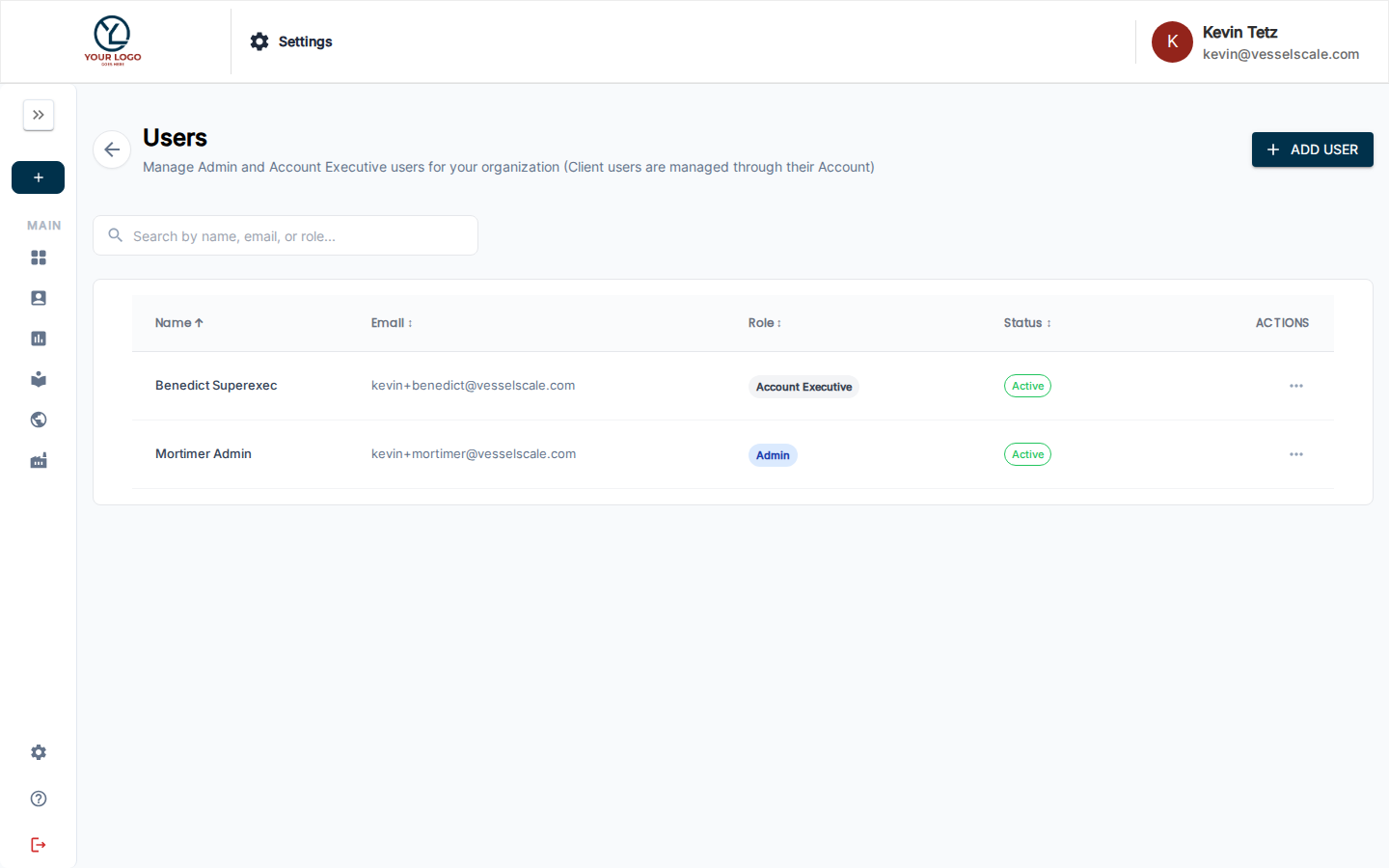
The three user roles are:
- Admin - Full system access and configuration
- Account Executive - Multi-account management and assessment creation
- Client - Self-service assessment completion and results viewing
Users can be assigned different roles in different accounts. For example, a user could be an Account Executive for one account and a Client in another.
Admin
What Admins can do
Admins have full system access and control over the entire platform. They can:
- Manage Accounts - Create, edit, and delete accounts
- Manage Users - Assign and change user roles
- Manage Assessments - Create, edit, publish, and deprecate assessment definitions in the library
- View All Data - See all accounts, assessments, and results across the entire organization
- Configure System Settings - Manage branding, email templates, intake forms, reports, and custom data
- Access Reports - View and generate assessment reports for all accounts
- Full Admin Access - Unrestricted access to all administrative features
What Admins cannot do
Admins cannot:
- Be prevented from accessing data (they have access to everything)
- Be restricted from system configuration
Typical Users: Tenant administrators, system administrators, support staff, implementation leads
Account Executive
What Account Executives can do
Account Executives manage specific accounts and can:
- Manage Assigned Accounts - View and edit information for accounts they're assigned to
- Create and Manage Assessments - For their assigned accounts only
- Start new assessments
- Invite respondents
- View responses as they come in
- View completed assessment results
- Access Assessment Library - View all assessment definitions available in the system
- Create draft assessments
- Edit draft assessments
- Link child assessments to parent assessments
- Reorder assessment display
- View Reports - Generate and view assessment reports for their assigned accounts
- Manage Contacts - Add and edit contact information for their assigned accounts
What Account Executives cannot do
Account Executives cannot:
- Access accounts they're not assigned to
- View data from other accounts
- Publish or deprecate assessment definitions (admin-only action)
- Manage system-level settings or configuration
- Assign user roles or create new users
- Delete accounts
Typical Users: Account managers, sales representatives, client success specialists, implementation partners
Note on Role Assignment: When an assessment is created for an account, the creator is automatically assigned as the Account Executive for that account.
Client
What Clients can do
Clients have limited access focused on completing assessments and viewing their own results. They can:
- Access Client Portal - Log in and access the client-facing portal
- View Their Account - See information about their own company
- Complete Assessments - Take assigned assessments and provide responses
- View Results - See the results and reports from completed assessments for their own account
- View Enabled Reports - Access report templates that have been enabled for their account
What Clients cannot do
Clients cannot:
- View other companies' data or assessments
- Create accounts or manage account information
- Manage users or assign roles
- Access administrator features or system configuration
- Edit assessment definitions
- View assessments from other organizations
Typical Users: Company employees, assessment respondents, client portal users
Role Comparison
| Capability | Admin | Account Executive | Client |
|---|---|---|---|
| Manage accounts | ✅ | ❌ (assigned only) | ❌ |
| Create assessments | ✅ | ✅ (assigned accounts) | ❌ |
| Complete assessments | ✅ | ✅ (assigned accounts) | ✅ |
| View all results | ✅ | ✅ (assigned accounts) | ✅ (own account) |
| View all accounts | ✅ | ❌ (assigned only) | ❌ (own account) |
| Manage user roles | ✅ | ❌ | ❌ |
| Publish assessments | ✅ | ❌ | ❌ |
| System configuration | ✅ | ❌ | ❌ |
| Client Portal access | ✅ | ✅ | ✅ |
Assigning Roles
Admins can assign roles to users in two ways:
- When creating a user - Specify the role during user creation
- In Account Details - Assign a user to a specific role for an account
Users automatically receive the Client role by default when they're first added to a system. Admins can then upgrade them to Account Executive or Admin as needed.
Related Sections
- Settings - Settings overview
- Account Details - View and manage account information and user assignments
- Branding - Customize role names and branding