 ChatGPT
 Claude
 Gemini
 Perplexity
Import & Export Accounts
Bulk import and export accounts using CSV or YAML formats. This feature lets you quickly manage large numbers of accounts without manually creating each one.
What you can do here
- Export all accounts in CSV or YAML format for backup, analysis, or sharing
- Import accounts from CSV or YAML files to add multiple accounts at once
- Edit account data before importing to ensure accuracy
- Skip duplicate accounts automatically during import
Export Accounts
Overview
The export feature lets you download all accounts from the system in either CSV or YAML format. Choose the format that best fits your workflow.
How to Export
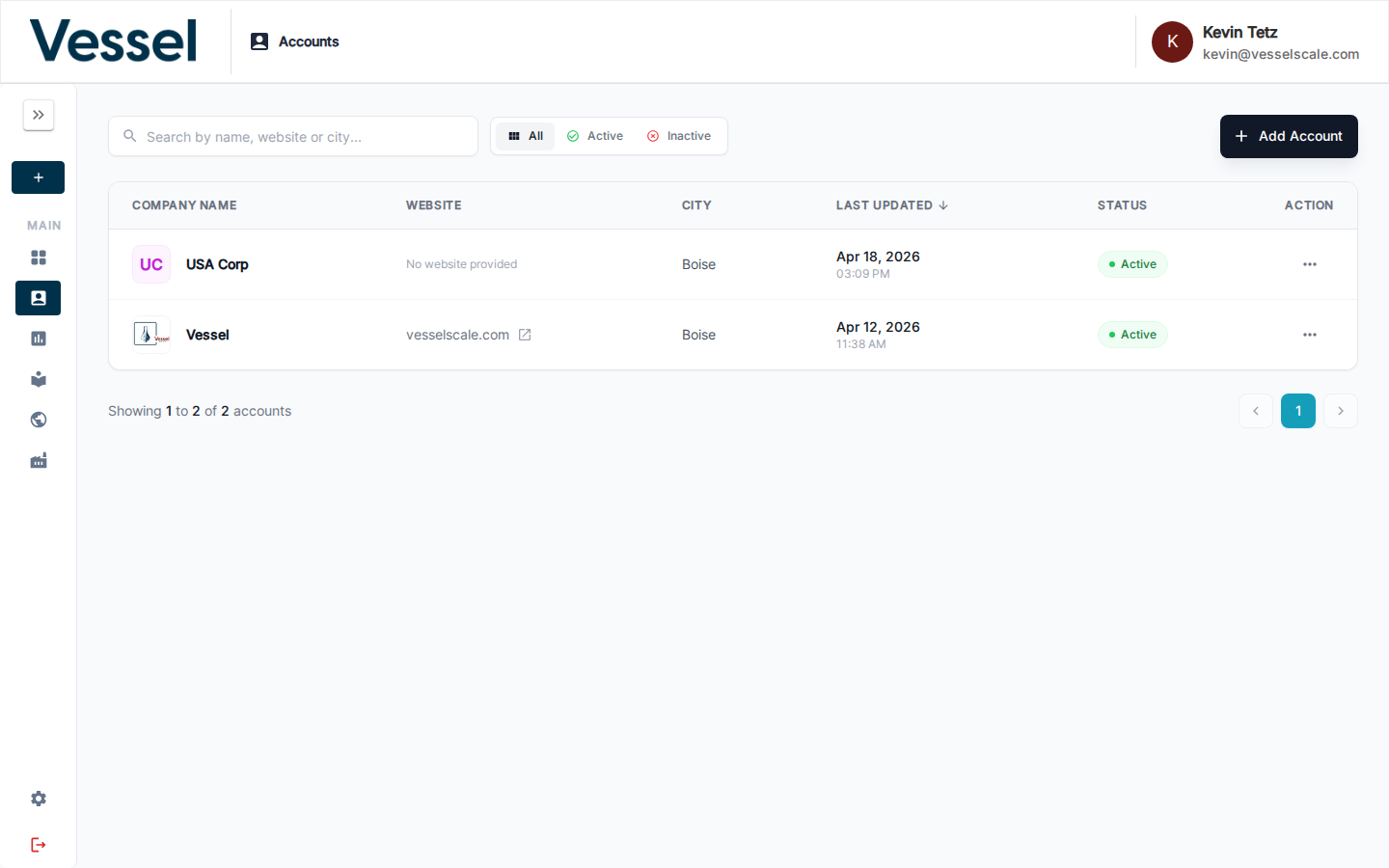
- From the Account List page, click the Export button in the top right toolbar
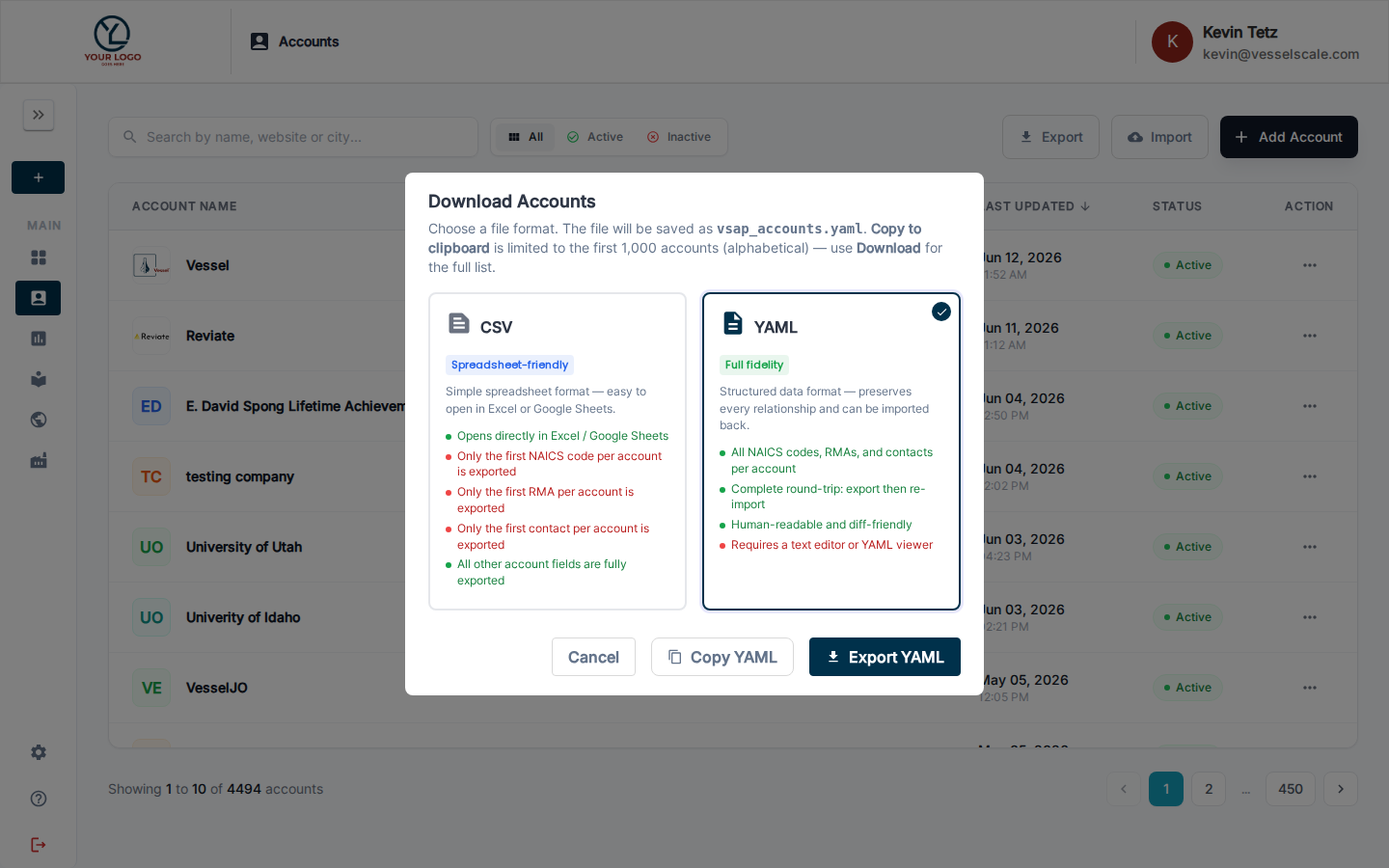
- Select your preferred format:
- CSV — Tabular format, good for spreadsheets and data analysis
- YAML — Structured format with full relationship details, good for backups and re-imports
- The file will download to your computer with the filename
accounts_export_[date].csvoraccounts_export_[date].yaml
Export Formats
CSV Export
CSV (Comma-Separated Values) provides a simplified, flat view of your accounts. Each row represents one account with the most important fields.
Included Fields:
| Column | Description | Notes |
|---|---|---|
account.name |
Company name | Always included |
account.email |
Company email address | Optional field |
account.website |
Company website URL | Optional field |
account.address1 |
Primary address | Optional field |
account.city |
City | Optional field |
account.state |
State/Province | Optional field |
account.zipcode |
Postal code | Optional field |
account.is_active |
Account status | true or false |
naics.code |
NAICS industry code | First code only; full list in YAML export |
contact.email |
Primary contact email | First contact only; full list in YAML export |
Example CSV:
account.name,account.email,account.website,account.address1,account.city,account.state,account.zipcode,account.is_active,naics.code,contact.email
Acme Manufacturing,contact@acme.com,https://www.acme.com,1234 Industrial Blvd,Springfield,IL,62701,true,332710,john.smith@acme.com
Global Tech Solutions,,https://www.globaltech.com,5678 Commerce Ave,Austin,TX,78701,true,541511,
Local Services Inc,info@localservices.com,,999 Main St,Denver,CO,80202,false,,sarah.jones@localservices.com
YAML Export
YAML (YAML Ain't Markup Language) provides a complete, structured representation of all account data including all contacts, NAICS codes, and relationships.
Included Fields:
- All account fields (name, email, website, address, dates, etc.)
- All associated NAICS codes
- All contacts with full details
- All relationships and metadata
Example YAML:
accounts:
  - account:
      name: "Acme Manufacturing"
      is_active: true
      email: "contact@acme.com"
      website: "https://www.acmemfg.com"
      address1: "1234 Industrial Blvd"
      city: "Springfield"
      state: "IL"
      zipcode: "62701"
      date_of_establishment: "2010-05-15"
      naics_codes:
        - code: "332710"
          title: "Precision Fastener Manufacturing"
      account_contacts:
        - first_name: "John"
          last_name: "Smith"
          email: "john.smith@acme.com"
          phone: "217-555-0123"
          contact_type: "Manager"
  - account:
      name: "Global Tech Solutions"
      is_active: true
      website: "https://www.globaltech.com"
      address1: "5678 Commerce Ave"
      city: "Austin"
      state: "TX"
      zipcode: "78701"
      naics_codes:
        - code: "541511"
          title: "Custom Computer Programming Services"
      account_contacts:
        - first_name: "Sarah"
          last_name: "Johnson"
          email: "sarah.johnson@globaltech.com"
          phone: "512-555-0456"
          contact_type: "Director"
        - first_name: "Mike"
          last_name: "Chen"
          email: "mike.chen@globaltech.com"
          phone: "512-555-0789"
          contact_type: "Coordinator"
Import Accounts
Overview
The import feature lets you add multiple accounts at once by uploading a CSV or YAML file. The system will automatically detect the format, validate the data, and create new accounts while skipping duplicates.
How to Import
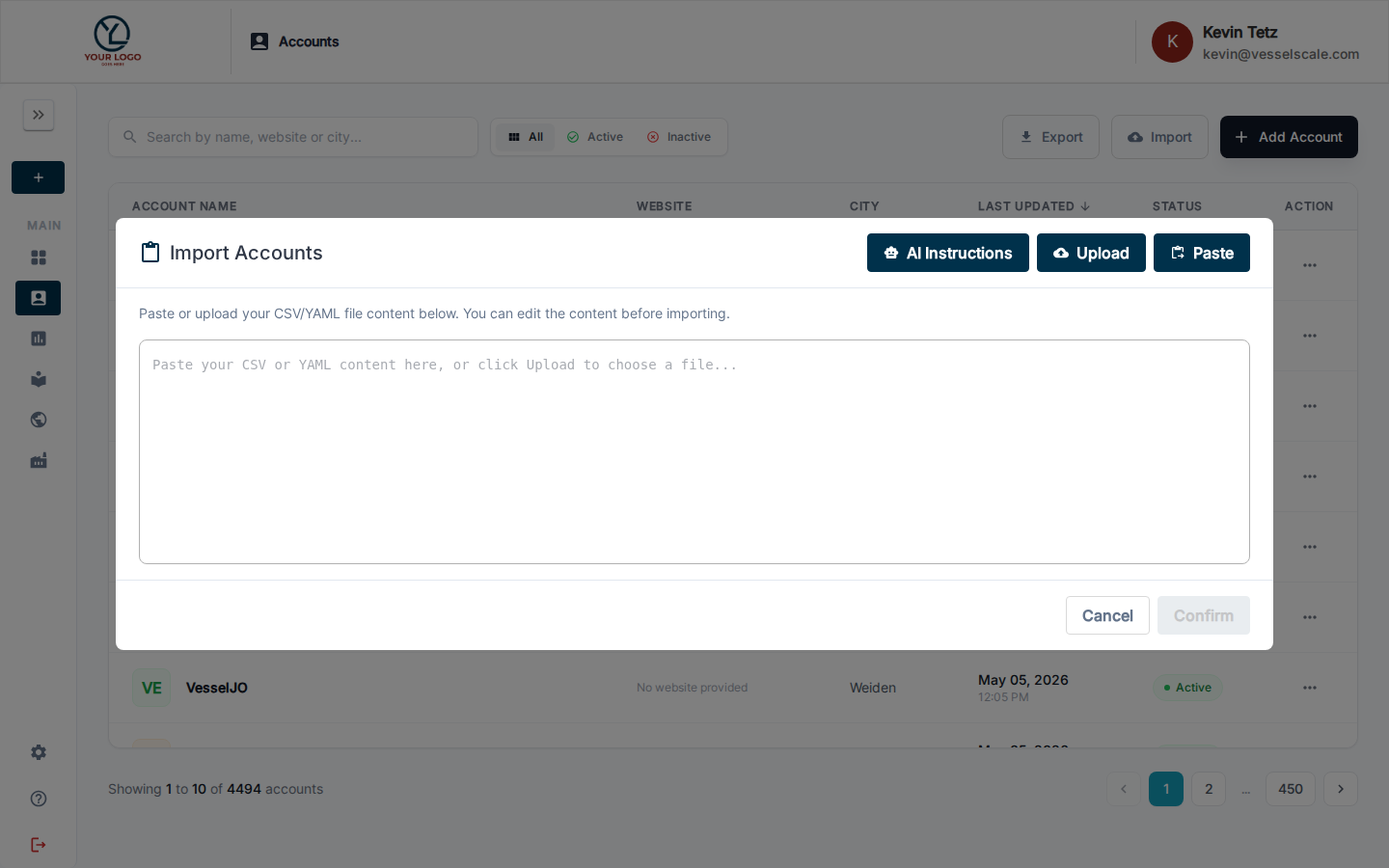
- From the Account List page, click the Import button in the top toolbar
- The import dialog will open with three options:
- Paste — Copy account data directly from clipboard
- Upload — Select a CSV or YAML file from your computer
-
Manually Edit — Paste or edit content in the text area before importing
-
Choose your method:
- For Paste: Copy your data to clipboard, click Paste, and the content will be loaded into the editor
- For Upload: Click Upload, select your file, and the content will be loaded
-
For Edit: Directly edit the content in the text area
-
Review the content for accuracy (edit as needed)
- Click Import to process the file
- A progress overlay will appear while the import runs in the background
- The system will display:
- ✅ Created — Number of new accounts successfully created
- ⏭️ Skipped — Number of duplicate accounts skipped (by name)
- ❌ Errors — Any validation errors with details
Import runs in the background
Account import is processed as a background job to avoid timeouts with large files. A spinner will display while the import is running. Do not close or refresh the page until it completes.
Required Fields
Only two fields are required for each account:
| Field | Description | Example |
|---|---|---|
name |
Company name (must be unique) | "Acme Manufacturing" |
is_active |
Account status | true or false |
All other fields are optional. You can add as much or as little detail as you want.
Supported Fields
| Field | Type | Required | Notes |
|---|---|---|---|
name |
Text | ✅ Yes | Must be unique; duplicates are skipped |
is_active |
Boolean | ✅ Yes | true or false |
email |
Optional | Company email address | |
website |
URL | Optional | Must start with http:// or https:// |
address1 |
Text | Optional | Primary street address |
address2 |
Text | Optional | Suite, building, or secondary address |
city |
Text | Optional | City name |
state |
Text | Optional | State or province abbreviation |
zipcode |
Text | Optional | Postal code |
county |
Text | Optional | County name |
country |
Text | Optional | Country name |
date_of_establishment |
Date | Optional | Format: YYYY-MM-DD |
business_description |
Text | Optional | Company description |
logo_url |
URL | Optional | Direct URL to company logo image |
naics_codes |
List | Optional | Industry classification codes |
account_contacts |
List | Optional | Contact persons at the company |
Contact Fields (Nested)
If you include account_contacts, each contact can have:
| Field | Type | Notes |
|---|---|---|
first_name |
Text | Contact first name |
last_name |
Text | Contact last name |
email |
Contact email address (optional; can derive from name) | |
phone |
Text | Contact phone number |
contact_type |
Text | Job title or role |
location |
Text | Office location or department |
File Size Limits
| Limit | Value | Notes |
|---|---|---|
| Maximum file size | 10 MB | Files larger than 10 MB are rejected at upload |
| Inline preview threshold | 1 MB | Files ≤ 1 MB are shown in the editable text area |
| Large file behaviour | File summary shown | Files > 1 MB display a banner instead of the text editor — you cannot edit them inline, but they import normally |
Why is there a preview limit? Rendering a very large file in the in-browser text editor would freeze the page. Files over 1 MB are loaded into memory and sent directly to the server when you click Import — no editing step.
Import Methods Comparison
| Method | Best For | Steps |
|---|---|---|
| Paste | Small updates, testing | 1. Copy data → 2. Click Paste → 3. Review/edit → 4. Import |
| Upload File (small, ≤ 1 MB) | Moderate batches | 1. Select file → 2. Review/edit content → 3. Import |
| Upload File (large, > 1 MB) | Large batches (100s of accounts) | 1. Select file → 2. Confirm file summary → 3. Import |
| Manual Edit | Quick corrections, template filling | 1. Paste/Upload content → 2. Edit in text area → 3. Import |
AI Assistant Helper
Click the AI Instructions button in the import dialog to copy detailed guidance for generating account data. This includes:
- Format specifications for CSV and YAML
- Examples of valid account structures
- Tips for creating realistic data
- Field requirements and constraints
- NAICS code reference
Tips & Best Practices
Before Importing
- Ensure Unique Names — Duplicate account names will be skipped. Check your file for duplicates.
- Validate URLs — Logo URLs should be real and accessible. Invalid URLs will be accepted but may fail to display.
- Check NAICS Codes — Use valid NAICS codes from the official classification system.
- Date Format — Use YYYY-MM-DD format for dates (e.g.,
2024-01-15). - Test First — Import a small batch (a few accounts) first to verify the format works before uploading large files.
- Keep files under 10 MB — The maximum supported file size is 10 MB. Split larger datasets into multiple files.
Handling Errors
If import errors occur:
- Review the error details displayed in the "Errors" section
- The error will show the account name and specific problem
- Fix the issue in the file and re-import
- Successfully created accounts won't be duplicated on retry
Format Best Practices
CSV Tips:
- Keep it simple — only include fields you're filling
- Use quotes around values with commas: "123 Main St, Apt 4"
- Test in a spreadsheet application first
YAML Tips:
- Maintain proper indentation (2 spaces per level)
- Quote values with special characters
- Use null or omit fields for empty values
- Validate syntax before importing
De-duplication
- By Name: Accounts are considered duplicates if the name exactly matches an existing account
- Case Sensitive: "Acme" and "acme" are treated as different accounts
- Skipped accounts are reported but don't cause the import to fail
- Re-import the same file multiple times — only new accounts will be added
Troubleshooting
| Issue | Cause | Solution |
|---|---|---|
| File won't upload | Format not supported | Use .csv, .yaml, or .yml files only |
| File rejected immediately | File exceeds 10 MB limit | Split into multiple smaller files and import separately |
| File loaded but no editor shown | File is larger than 1 MB | This is normal — a summary banner is shown instead. Click Import to proceed. |
| Import shows errors | Invalid field values | Check the error details and fix the data |
| Accounts not created | Names are duplicates | Ensure each account has a unique name |
| NAICS codes not recognized | Invalid code format | Verify codes are in the official NAICS system |
| Logo URLs not displaying | URL is invalid or broken | Test the URL in a browser; leave blank if unsure |
Help Video
Vessel Accounts | Import and Export Accounts
Related
- Account List — View and manage all accounts
- Create Account — Create a single account manually
- Account Details — View account information
- Edit Account — Edit account properties