 ChatGPT
 Claude
 Gemini
 Perplexity
Your Assessments
The Your Assessments section is the first tab you see in the Available Assessments area of the Client Portal. It shows all the assessments assigned to or created by your organization along with their current status.
You can use the Search field to find a specific assessment by name, or use the All Statuses dropdown to filter by completion status. A summary at the bottom shows the total number of assessments assigned to your account.
The Available Assessments area has two tabs: Your Assessments (this page) and All Available Assessments — where you can browse every assessment type offered by your organization and start new ones.
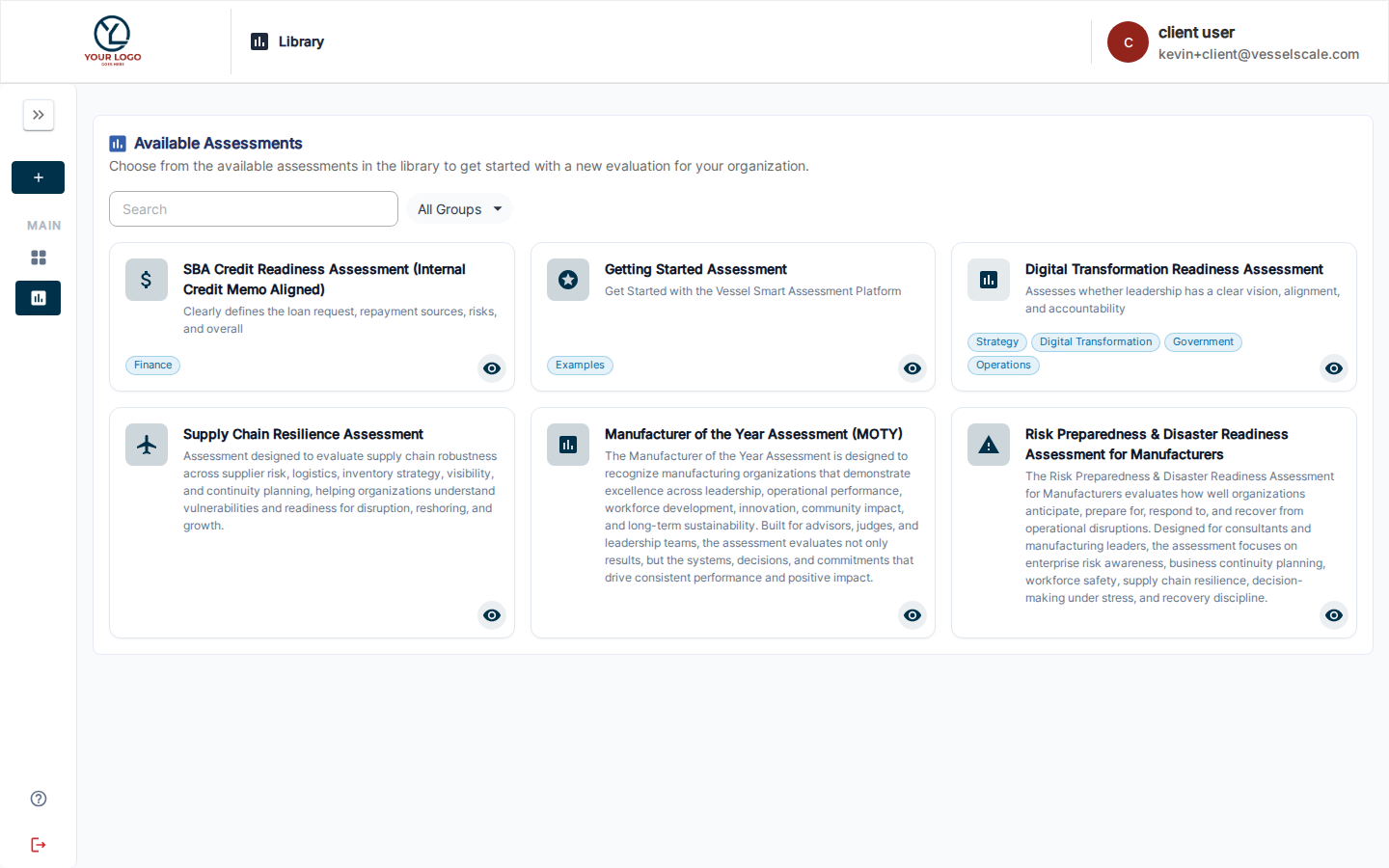
Table columns
| Column | Description |
|---|---|
| Name | The assessment title and instance name |
| Status | Current completion state — see Status values below |
| Updated Date | The last date any changes were made to this assessment |
| Action | Buttons to interact with the assessment — see Action buttons below |
Status values
| Status | Meaning | What it means for you | Next Step |
|---|---|---|---|
| Draft | The assessment has been created but not yet sent to respondents | You can continue editing your responses, or wait for your Account Executive to launch it | Save your progress anytime and return to resume; or contact your AE if you need help finalizing |
| In Progress | Respondents have been invited and are actively completing the assessment | The assessment is live — respondents are filling in answers | Click Take Assessment to contribute your responses |
| Results Review | All responses are in — results are being reviewed | Your responses have been submitted and are being analyzed | View your scores and analysis when your AE has completed the review |
| Closed | The assessment is complete and finalized | All responses are locked and final reports have been generated | View your final results and analysis in read-only mode |
Action buttons
Each row has action buttons depending on the assessment's status and how it was created:
-
Take Assessment (▶ play button) — Opens the assessment questionnaire. Use this to start, continue, or review your responses when the assessment is In Progress.
-
View / Edit (👁 eye icon) — Available on assessments you created directly from the portal. Opens the assessment summary page where you can review details, edit responses, or track progress.
-
Copy Link (link icon) — Copies a shareable link you can send to colleagues or team members who need to help complete the assessment.
-
View Analysis (chart icon) — Opens the results and analysis report. Available once the assessment has responses.
Read-Only Mode
Once an assessment reaches Closed status, you can view the completed assessment in read-only mode. This means:
- ✓ You can view all responses, scores, and analysis
- ✓ You can review category breakdowns and scoring details
- ✓ You can read the Account Executive's analysis notes and recommendations
- ✗ You cannot edit responses or add new answers
- ✗ You cannot modify scores or analysis
- ✗ You cannot change the assessment structure or questions
Read-only mode ensures that completed assessments remain final and accurate for reporting and archival purposes. If you need to make changes to a closed assessment, contact your Account Executive.
Creating your own assessments
Client users can now start new assessments directly from the portal without waiting for an Account Executive to assign one. To create a new assessment:
- Click the All Available Assessments tab (next to "Your Assessments")
- Browse the card grid and click on an assessment type you want to run
- In the detail modal, click Create This Assessment for My Account
- Fill in the assessment details and submit
Once created, your new assessment appears in this Your Assessments table with a Draft status. You'll see a View / Edit button on that row to open and manage it.
Managing Your Draft Assessment
When you've created an assessment as a Draft, you can:
- Save as you go — Your responses and progress save automatically as you fill in answers
- Return anytime — Close the assessment and come back later using View / Edit — your work is preserved
- Continue editing — Add more responses or modify existing answers until you're ready
- Notify your AE — When ready, contact your Account Executive to launch or publish the assessment to respondents
The draft remains under your control until your Account Executive takes the next action (such as launching it for broader respondent participation).
Tips for completing assessments
- Assessments can be saved — you don't need to complete them all at once. Your progress is saved automatically.
- Return anytime — use Take Assessment or View / Edit to come back to an in-progress assessment.
- Questions may have guidance — read the full question text and any help icons for clarification.
- Can't interact with an assessment? — if no action button appears, the assessment may be in a state that doesn't allow edits. Contact your Account Executive for help.
Related
- All Available Assessments — browse assessment types and create new ones
- Library — the original library for browsing and launching assessments
- Client Portal Overview — portal navigation overview
- Industry Benchmarking — see how your scores compare to industry averages