 ChatGPT
 Claude
 Gemini
 Perplexity
Email Templates
Email templates control the content and appearance of automated emails sent throughout the Smart Assessment Platform. Customize each template to match your organization's branding and messaging needs.
Overview
The Smart Assessment Platform sends emails for various events:
- Assessment Invitations - When participants are invited to complete an assessment
- Assessment Reminders - Automated follow-ups to incomplete assessments
- Threshold Notifications - When an assessment reaches its response target
- Account Management - User activation, password reset, and account completion emails
- Intake Form Notifications - When intake forms are submitted
All email templates support dynamic content through template variables, allowing you to personalize communications with assessment names, company information, and participant details.
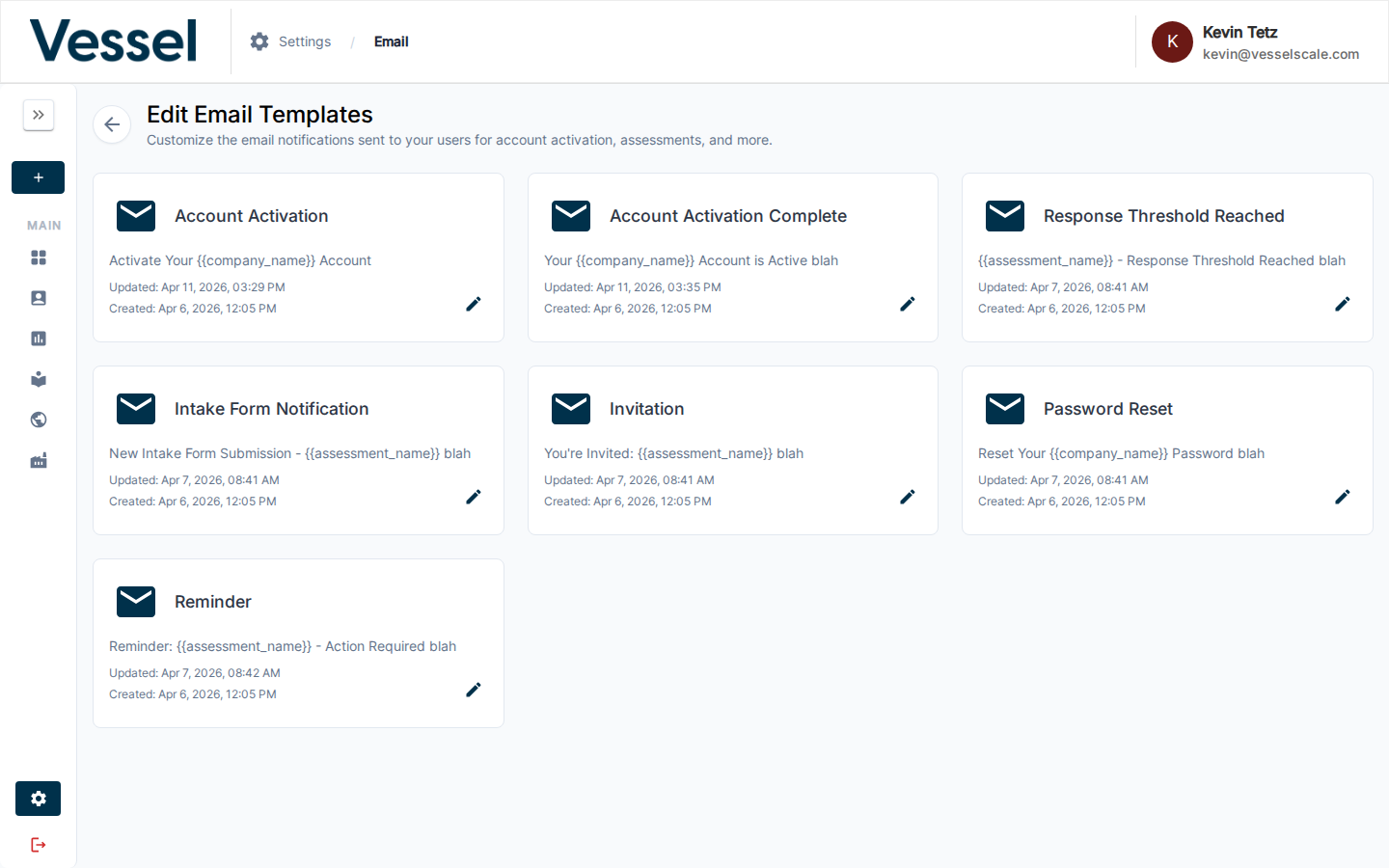
Email Template Types
Invitation
When it's used: Sent to assessment participants when an assessment is launched.
How to trigger it: Navigate to an Assessment details page and click the "Send" button in the actions menu.
Purpose: Invites participants to begin an assessment, providing them with a direct link and context about what they'll be evaluating.
Typical use: Initial outreach to collect feedback or conduct evaluations.
Reminder
When it's used: Sent as follow-up reminders to participants who have not yet started or completed an assessment.
How to trigger it: Configured via automated reminder schedules (recurring at configured intervals).
Purpose: Encourages participants to complete assessments they've begun or haven't started, increasing completion rates.
Typical use: Multiple follow-ups over several weeks to maximize participation.
Response Threshold Reached
When it's used: Sent to the assessment creator when an assessment reaches its target response threshold.
How to trigger it: Triggered automatically when the specified number of responses is received from participants.
Purpose: Notifies administrators that sufficient data has been collected and results are ready for review.
Typical use: Administrative notification that the assessment can proceed to analysis phase.
Account Activation
When it's used: Sent to team members when granting them account access.
How to trigger it: Navigate to an Account details page, locate the Contacts section, and click the "Send Access" button next to a contact.
Purpose: Provides new users with a secure link to activate their account and set their password.
Typical use: Onboarding new team members or reinstating access for existing users.
Account Activation Complete
When it's used: Sent to users after they have successfully activated their account.
How to trigger it: Automatically sent after a user completes the account activation process and sets their password.
Purpose: Confirms successful account setup and welcomes the user to the platform.
Typical use: Final step in the user onboarding workflow.
Password Reset
When it's used: Sent when a user requests to reset their password.
How to trigger it: Click the "Forgot password?" link on the Login page.
Purpose: Provides a secure link for users to create a new password if they've forgotten their current one.
Typical use: Self-service password recovery.
Intake Form Notification
When it's used: Sent to designated recipients when a new intake form is submitted.
How to trigger it: Automatically triggered when a user submits an intake form.
Purpose: Alerts administrators about new intake submissions that require review or follow-up.
Typical use: Intake form submission notifications and workflow.
Template Variables Reference
Template variables are placeholders that get replaced with actual assessment data when emails are sent. Use template variables to personalize emails and include dynamic information. Similar template variables are available in Web Reports for report customization.
How to Use Template Variables
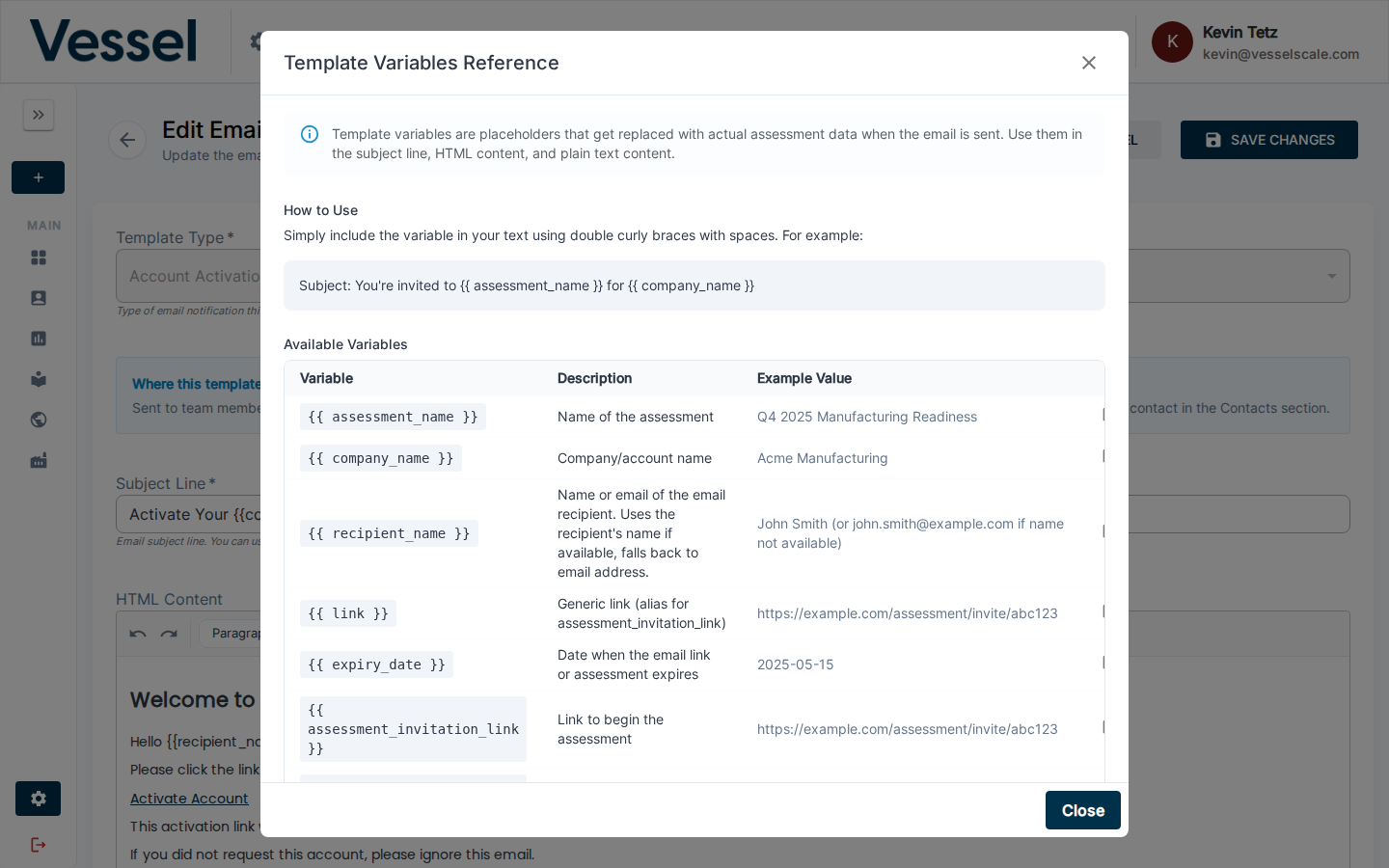
Simply include a variable in your subject line or email content using double curly braces with spaces:
Subject: You're invited to {{ assessment_name }} for {{ company_name }}

Body:
Hi {{ recipient_name }},

You've been invited to complete the {{ assessment_name }} assessment.
Please click the link below to get started:
{{ assessment_invitation_link }}
Available Variables
| Variable | Description | Example |
|---|---|---|
{{ assessment_name }} |
Name of the assessment | Q4 2025 Manufacturing Readiness |
{{ company_name }} |
Company/account name | Acme Manufacturing |
{{ recipient_name }} |
Name or email of the email recipient. Uses the recipient's name if available, falls back to email address. | John Smith (or john.smith@example.com if name not available) |
{{ link }} |
Generic link (alias for assessment_invitation_link) | https://example.com/assessment/invite/abc123 |
{{ expiry_date }} |
Date when the email link or assessment expires | 2025-05-15 |
{{ assessment_invitation_link }} |
Link to begin the assessment | https://example.com/assessment/invite/abc123 |
{{ evaluation_invitation_link }} |
Alias for assessment_invitation_link (backward compatibility) | https://example.com/assessment/invite/abc123 |
{{ assessment_type }} |
Type of assessment | Manufacturing Readiness |
{{ target_responses }} |
Target number of responses | 12 |
{{ primary_logo }} |
URL to tenant logo | https://... |
{{ primary_color }} |
Primary brand color (hex) | #0066cc |
{{ assessment_definition_name }} |
Assessment definition name | Manufacturing Readiness |
{{ assessment_noun_descriptor }} |
Noun descriptor for the assessment | Manufacturing Assessment |
{{ evaluation_category_name }} |
Assessment category name | Operations |
{{ assessment_review_link }} |
Link to review assessment results | https://example.com/assessment/review/abc123 |
Important Notes
- Expiry date variable - The
{{ expiry_date }}variable now correctly uses the assessment end date. Previously, it referenced an incorrect date field. This ensures reminder emails and invitations display the accurate expiration date to participants. - Recipient name handling - The
{{ recipient_name }}variable gracefully handles cases where recipient names are not available. If a name is missing, it returns an empty string instead of breaking the template, allowing emails to still render cleanly. - Unknown variables - If you use a variable name that doesn't exist (e.g.,
{{ unknown_var }}), it will be left as-is in the output. Always verify you're using the exact variable names shown above. - Template rendering - Variables are processed and replaced server-side before emails are sent.
- Personalization - Use variables in both subject lines and body content to create personalized, context-aware communications.
Customizing Email Templates
Access Email Templates
- Navigate to Settings from the main menu
- Select Email Templates
- Browse the list of available templates
- Click on any template to edit its content
Edit a Template
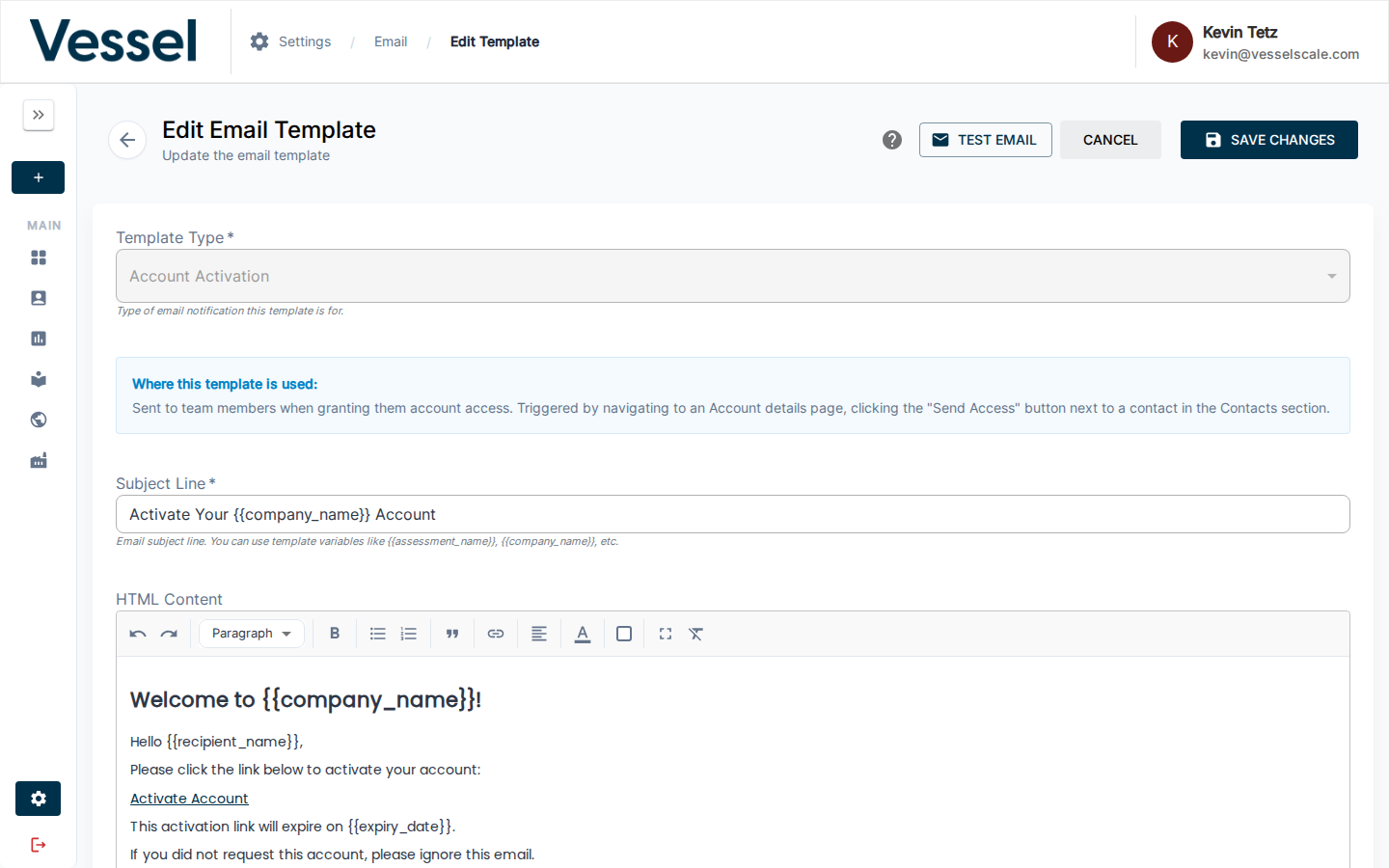
- Click on the template you want to customize
- The template editor will display:
- Template Type - The type of email (cannot be changed after creation)
- Where this template is used - Information box explaining when and how the template is triggered
- Subject Line - The email subject with support for template variables
- HTML Content - Rich formatted email body with HTML editor
- Plain Text Content - Text fallback version
- Use the template variables reference to personalize your content
- Click Test Email to send a preview to your email address
- Click Save Changes when you're satisfied
Test Your Templates
Before deploying a customized template:
- Edit the template as desired
- Click Test Email to send a preview
- Check your email for proper formatting and variable replacement
- Review links and ensure all content appears correctly
- Make adjustments as needed and test again
Best Practices
- Keep it concise - Email recipients appreciate clear, brief messages
- Include a call to action - Use link variables like
{{ assessment_invitation_link }}to guide users to the next step - Use consistent branding - Include your
{{ primary_logo }}and style with{{ primary_color }}configured in Branding settings - Test before deploying - Always send a test email to verify formatting and variable replacement
- Provide context - Include assessment details and company information so recipients understand the purpose
- Mobile-friendly HTML - Ensure your HTML email designs work on mobile devices
- Plain text fallback - Keep the plain text version clear and informative for users with text-only email clients