 ChatGPT
 Claude
 Gemini
 Perplexity
Step 4 — Send the Assessment to Respondents
Once the assessment is created, share it so respondents can submit their answers.
The Share Links Card
On the Assessment Details page, scroll down to the Share Assessments Link card.
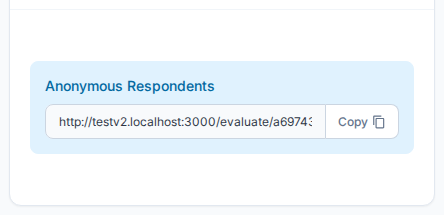
There are two ways to send the assessment:
Anonymous Respondents
Copy the Assessment Link and share it however you like — email, chat, or your own portal. Anyone with the link can submit a response once the assessment is published.
Direct Recipients
Click + Add to send a unique, one-time link to a specific email address. Direct links are tied to that recipient and cannot be reused.
Publishing the Assessment
The assessment must be set to Published status before respondents can submit responses. On the assessment detail page, change the status from the status dropdown in the header area.
Tracking Responses
The assessment detail page shows Total, Closed, and In Progress counts so you can monitor participation in real time.
Next Step
Full guide: Assessment Details
Related
- Assessment Details Reference — Full assessment management
- Share Assessments — Respondent management and sharing options