 ChatGPT
 Claude
 Gemini
 Perplexity
Dashboard Overview
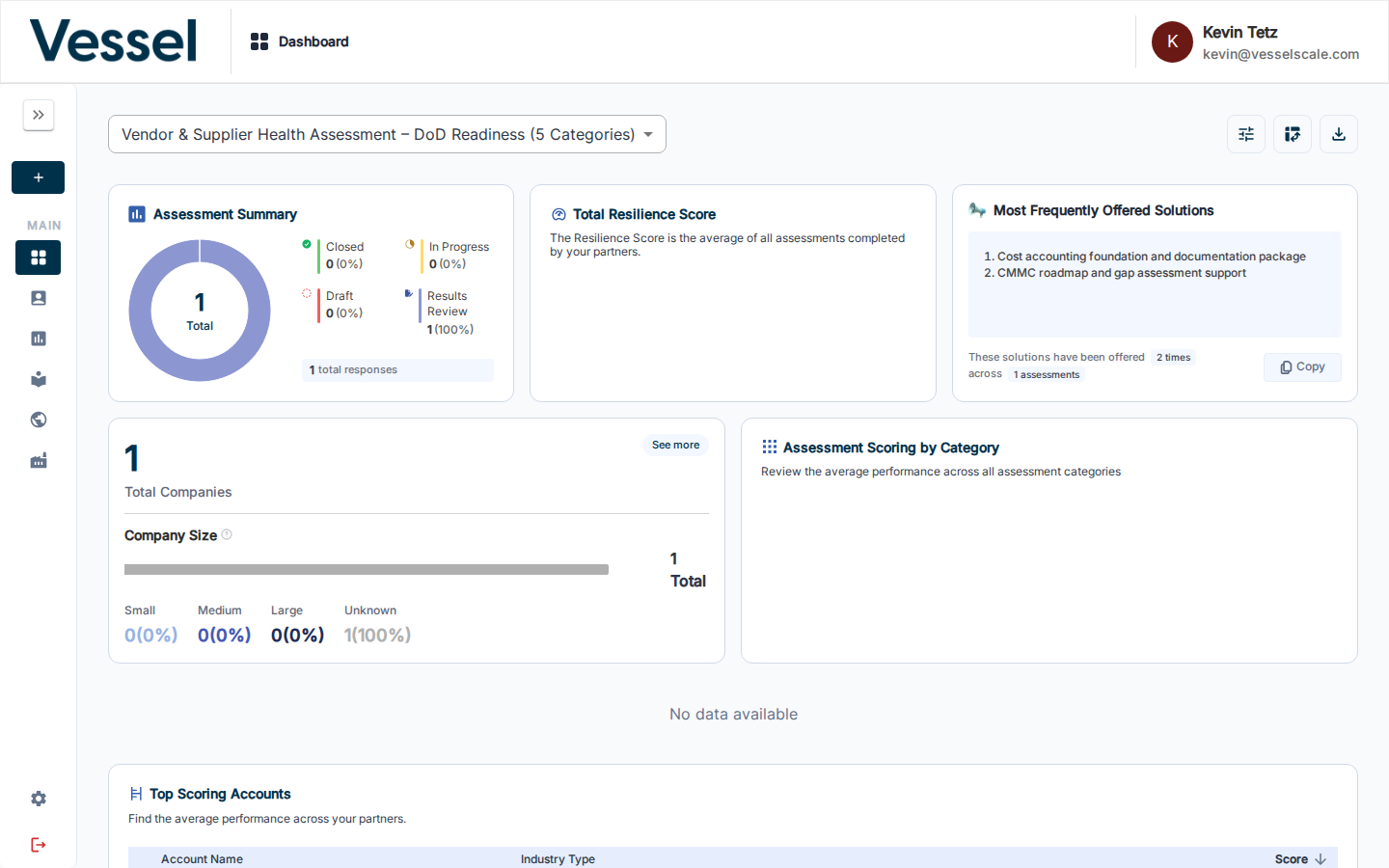
The Dashboard gives you a high-level view of all assessment activity across your accounts — scores, trends, response counts, and more.
Opening the Dashboard
Click Dashboard in the left sidebar or select an assessment definition from the dropdown at the top of the page.
What You'll See
The dashboard is made up of configurable component cards:
| Card | Description |
|---|---|
| Assessment Summary | Total, Closed, and In Progress counts |
| Resilience Score | Overall average score across all assessments |
| Scoring by Category | Breakdown of scores per assessment category |
| Top / Lowest Scoring Accounts | Ranked lists at a glance |
| Company Size & NAICS | Distribution charts by company attributes |
Filtering the Dashboard
Use the assessment definition dropdown at the top to switch between different assessment types. All cards update instantly.
Going Deeper
- Configure the dashboard — Add, remove, or reorder component cards
- Download CSV — Export all assessment data
- Pivot Table — Slice and filter by any dimension
- Ecosystem View — Compare performance across multiple accounts
Related
- Dashboard Overview — Complete dashboard documentation
- Configure Dashboard — Customize components
- Ecosystem View — Compare across accounts
- Getting Started Guide — Return to the Getting Started overview